
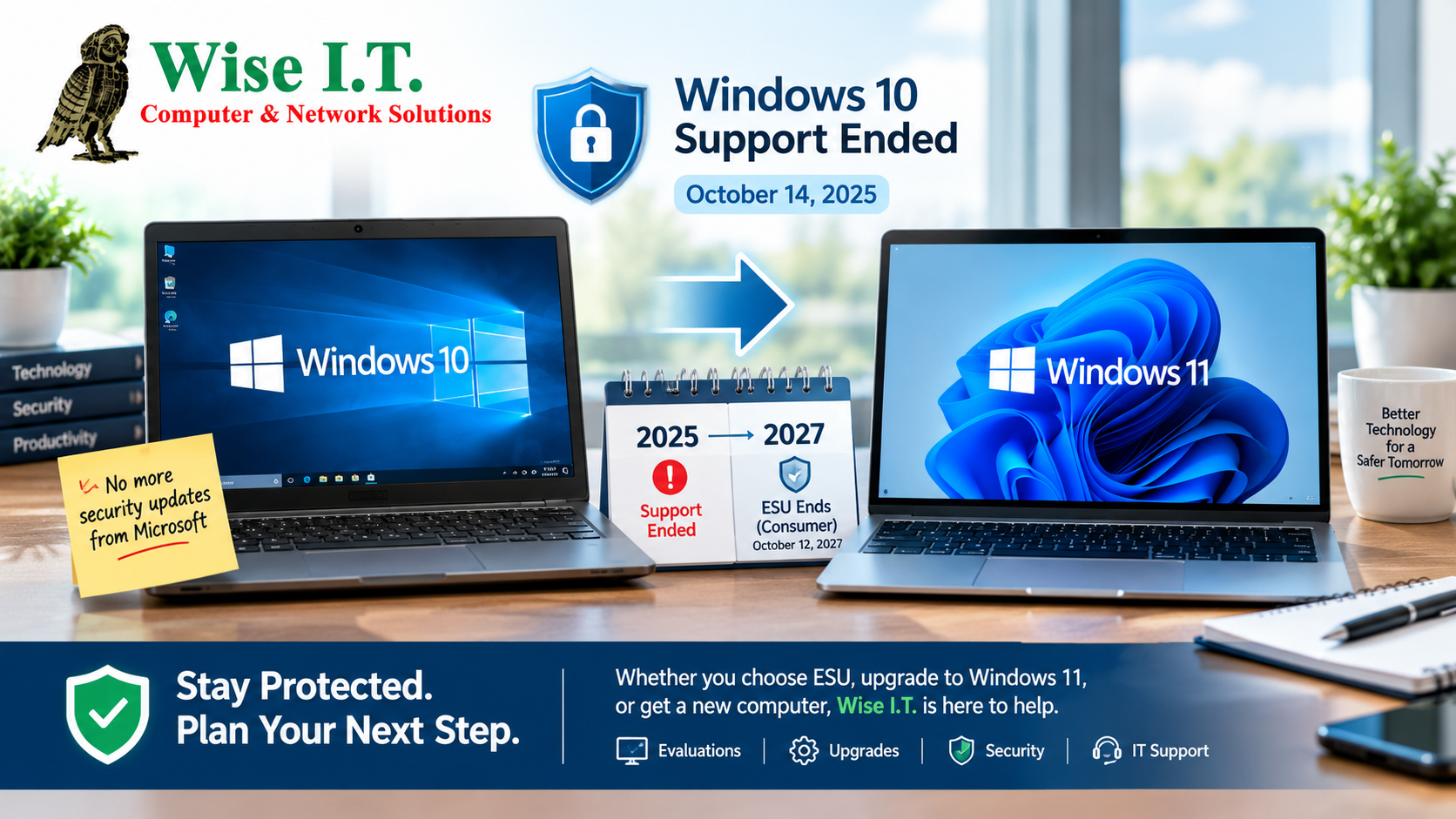
Windows 10 support officially ended on October 14, 2025. If you still have a Windows 10 computer that isn’t ready for Windows 11, Microsoft offers Extended Security Updates (ESU) as a temporary way to continue receiving important security updates while you transition. Microsoft says consumer ESU coverage can continue through October 12, 2027.
For many home users and small businesses, ESU provides additional breathing room but it isn’t a replacement for moving to a supported operating system.
What Is Windows 10 ESU?
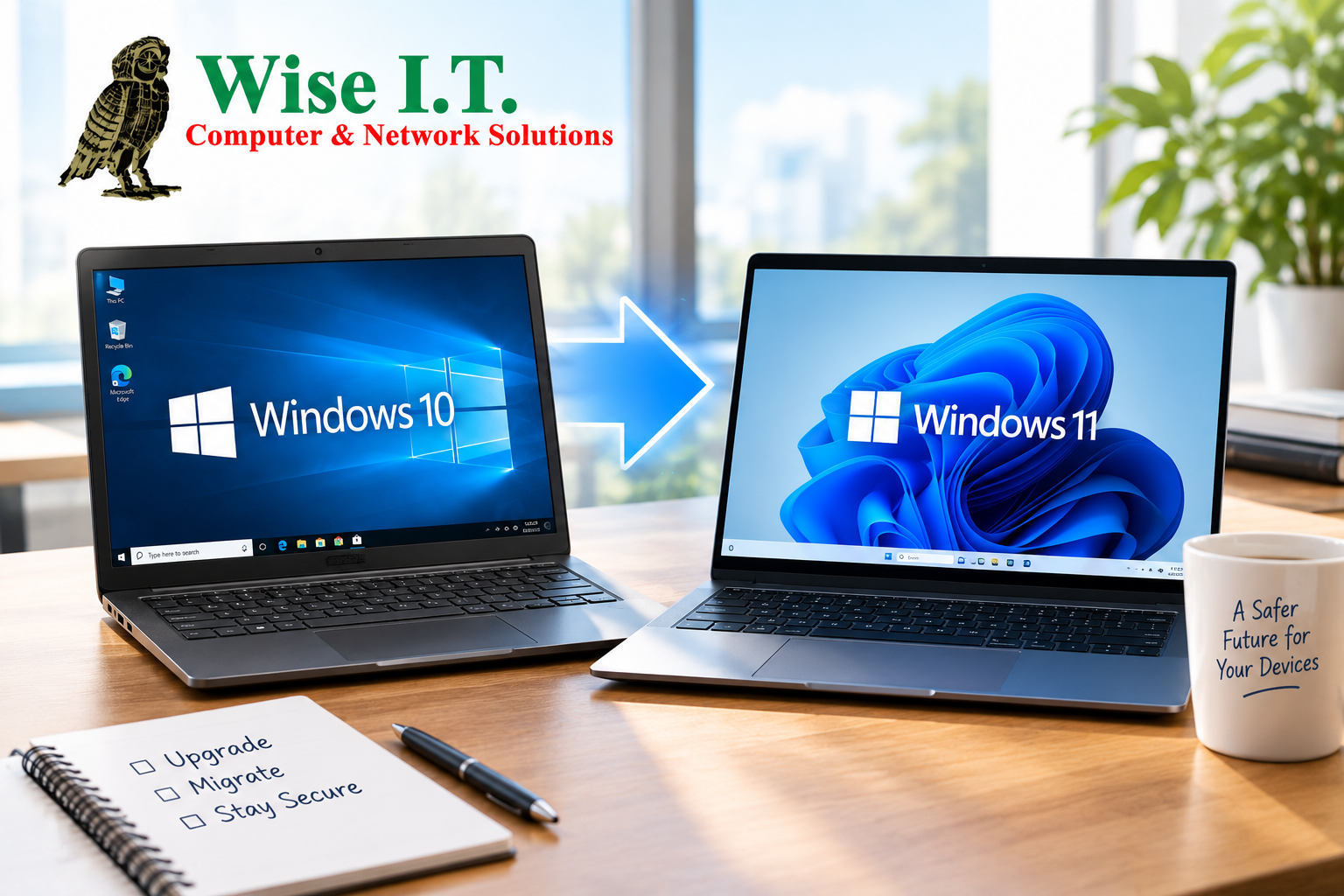
Extended Security Updates (ESU) is Microsoft’s program for providing continued security updates after Windows 10 reached its end-of-support date.
For eligible consumer PCs, ESU provides critical and important security updates intended to help protect Windows 10 devices from security threats. The program is specifically designed as a transition option for people who need additional time before moving to Windows 11 or replacing their computer.
Think of ESU as a temporary security bridge, not an extension of the full Windows 10 support life-cycle.
Why Did Windows 10 Reach End of Support?
Microsoft ended standard support for Windows 10 on October 14, 2025.
After that date, Windows 10 PCs can continue to operate, but Microsoft no longer provides the normal Windows 10 security updates, feature updates, or technical support. Microsoft recommends moving compatible computers to Windows 11 or replacing computers that don’t meet Windows 11 requirements.
That doesn’t mean your Windows 10 computer suddenly stops working.
Instead, the concern is what happens after security updates stop.
Without ongoing security updates, vulnerabilities discovered in the operating system may remain unpatched, increasing exposure to malware and other security threats.
How Long Does ESU Last?
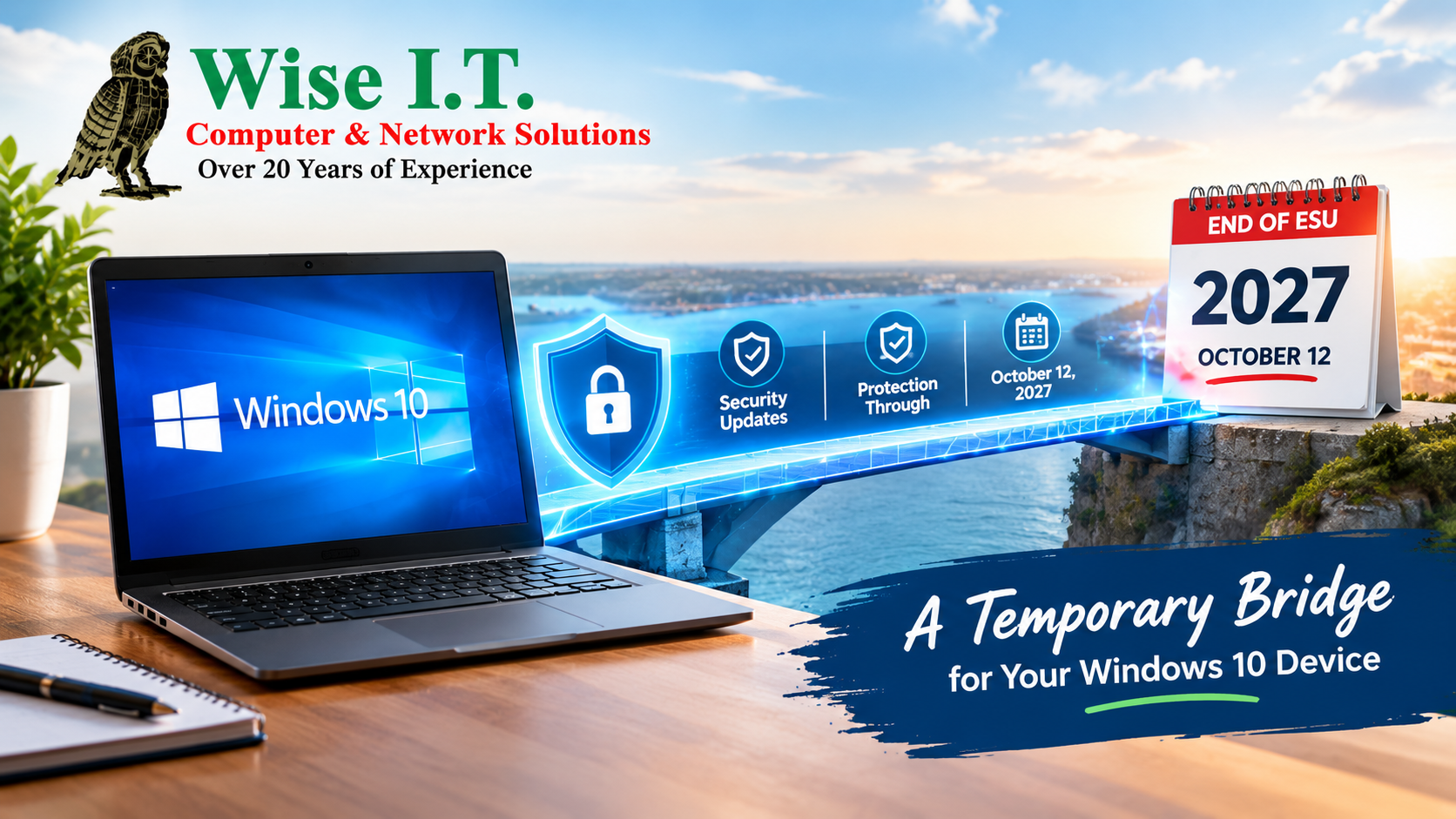
For consumer Windows 10 devices, Microsoft’s ESU program provides security updates through:
October 12, 2027
Microsoft states that eligible Windows 10 devices enrolled in ESU can continue receiving critical and important security updates through that date.
That gives users additional time to:
- Purchase a new computer
- Determine whether their current PC can run Windows 11
- Transfer files and applications
- Move data to a new computer
- Plan a business hardware replacement
- Prepare employees for a Windows upgrade
- Budget for new equipment
Does ESU Mean Windows 10 Is Fully Supported Again?
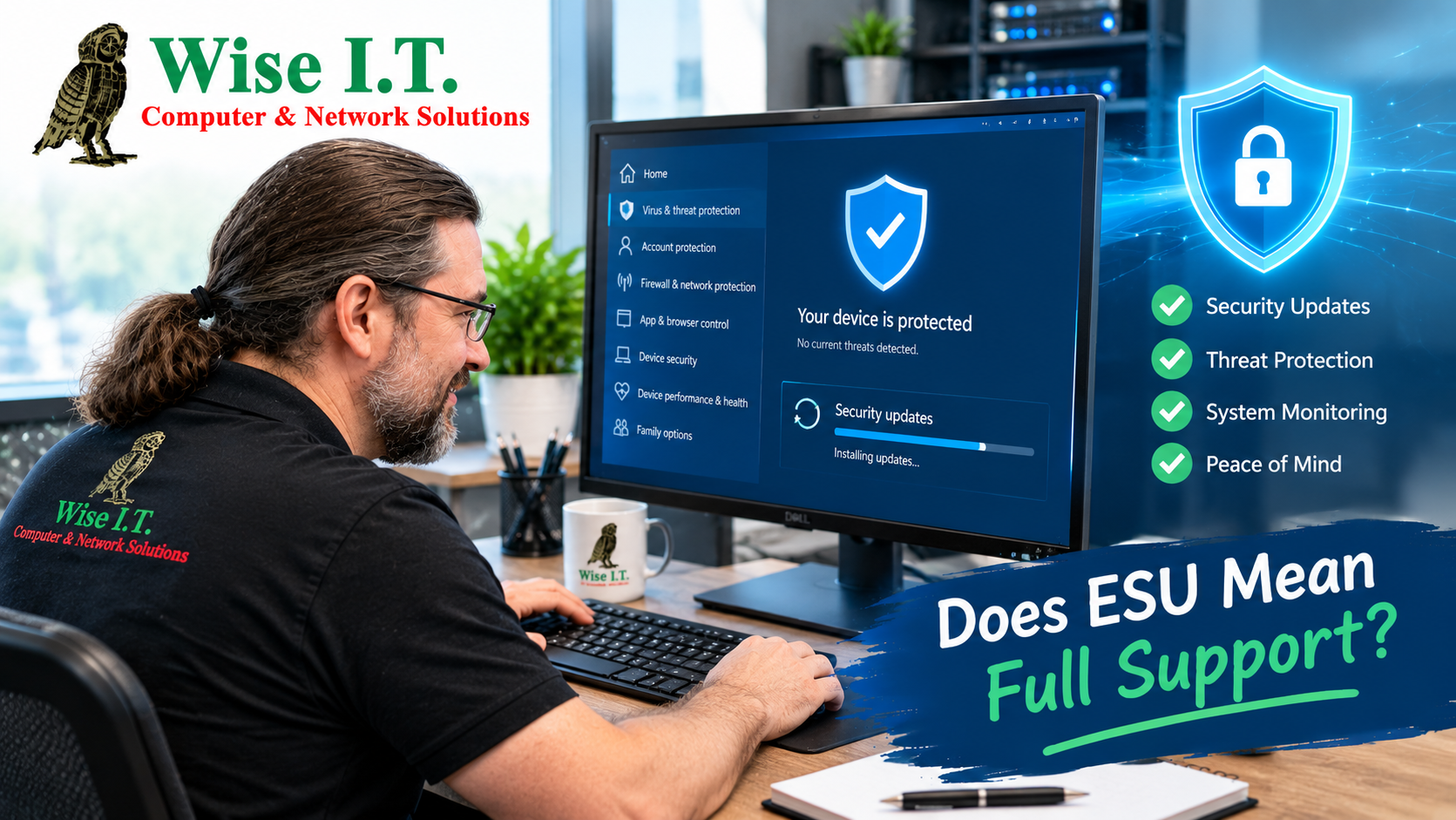
No.
This is one of the most important things to understand about ESU.
ESU provides eligible security updates, but it does not restore the complete Windows 10 support life-cycle.
Microsoft specifically says ESU does not include:
- New features
- Non-security updates
- Product enhancements
- Design changes
- General technical support
So while an enrolled computer can continue receiving certain security updates, it isn’t equivalent to having a fully supported version of Windows.
Which Windows 10 PCs Are Eligible?
Microsoft’s current ESU documentation specifies Windows 10 version 22H2 for eligible devices.
Before attempting to enroll a computer, it’s important to determine:
- Which version of Windows 10 the computer is running
- Whether it is running version 22H2
- Whether the device meets Microsoft’s ESU requirements
- Whether the computer can instead be upgraded to Windows 11
Microsoft also provides an enrollment process through Windows settings for eligible consumer devices.
How Much Does Windows 10 ESU Cost?
Microsoft currently lists several consumer enrollment options.
According to Microsoft’s Windows 10 end-of-support information, consumers can enroll:
- At no additional cost when syncing PC settings
- By redeeming 1,000 Microsoft Rewards points
- Through a $30 one-time purchase, plus applicable tax
Microsoft’s terms and eligibility requirements can change, so users should check Microsoft’s current ESU information before enrolling.
Should You Upgrade to Windows 11 or Use ESU?
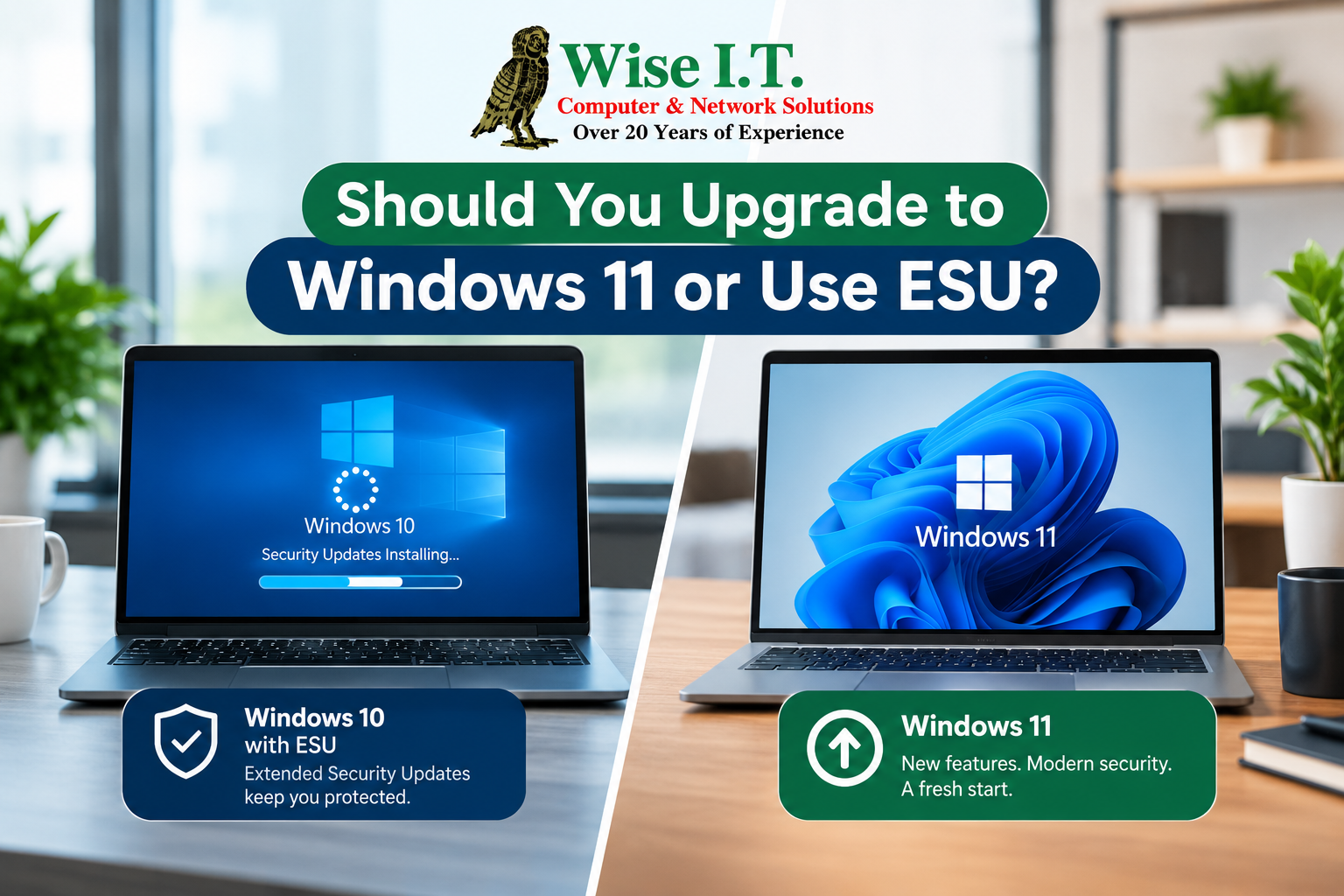
There isn’t one answer for every computer.
If your computer supports Windows 11
You may be able to upgrade your existing PC rather than replacing it. Microsoft recommends checking the device’s compatibility before upgrading.
If your computer doesn’t support Windows 11
ESU can provide additional time to plan a replacement while continuing to receive eligible security updates.
If you’re buying a new computer
A new Windows 11 PC may provide a longer-term solution rather than using ESU as a temporary measure.
If you have several business computers
Businesses may want to create an upgrade plan instead of waiting until individual computers become a problem.
What About Businesses?
Businesses should treat Windows 10 ESU as part of a broader technology transition plan.
An organization may have computers that:
- Can’t meet Windows 11 hardware requirements
- Run specialized applications
- Require additional testing before an upgrade
- Need scheduled hardware replacement
- Are used by employees who require minimal downtime
Microsoft provides separate ESU guidance for organizations, and commercial ESU programs have different licensing considerations from consumer enrollment.
For businesses with multiple PCs, it’s worth creating an inventory of Windows 10 machines and determining which devices should be upgraded, replaced, or temporarily covered by ESU.
Don’t Wait Until Your Computer Becomes a Problem
The end of Windows 10 support doesn’t mean you need to replace every computer immediately.
However, October 12, 2027 is a deadline worth planning around if you intend to use consumer ESU.
A good transition plan can include:
Step 1 — Identify your Windows version
Check whether your computer is running Windows 10 version 22H2.
Step 2 — Check Windows 11 compatibility
Determine whether the existing hardware meets Windows 11 requirements.
Step 3 — Review your options
Depending on the computer, you may choose Windows 11, a new PC, or ESU as a temporary bridge.
Step 4 — Protect your data
Before any major operating-system upgrade or computer replacement, make sure important files are backed up.
Step 5 — Plan the transition
Don’t wait until an old computer fails or becomes difficult to secure. Give yourself time to transfer data, reinstall applications, and configure your new system.
Need Help With Your Windows 10 Computer?

If you’re still using Windows 10 and aren’t sure what to do next, Wise I.T. Computer & Network Solutions can help you evaluate your current computer and determine what makes sense for your situation.
We can help with:
- Windows 10 troubleshooting
- Windows 11 compatibility checks
- New computer selection
- Computer setup
- Data transfers
- File and backup solutions
- Microsoft 365
- Security and malware protection
- Home office setup
- Business computer upgrades
- Onsite and remote IT support
Don’t know whether you need ESU, Windows 11, or a new computer? Start with an evaluation of your current setup.
Get Help From Wise I.T.
Call (949) 682-WISE
Important Note
ESU is a temporary security-update program, not a way to permanently keep Windows 10 on a fully supported life-cycle. Microsoft’s current consumer information says coverage ends October 12, 2027.
For the most current eligibility, enrollment, and pricing information, users should consult Microsoft’s official Windows 10 ESU information. Microsoft Windows 10 Extended Security Updates
The post Windows 10 Extended Security Updates: What You Need to Know About ESU first appeared on Wise I.T. Computer & Network Solutions.