
Have you ever received a Zoom meeting invitation and wondered, “What do I click?”
You are not alone.
Zoom is commonly used for family video calls, doctor appointments, business meetings, online classes, and many other virtual events. If you are new to Zoom, joining your first meeting may seem confusing at first.
The good news is that it is usually much easier than it looks.
In this simple Wise I.T. walk through, we will show you how to join a Zoom meeting step by step.
What Is Zoom?
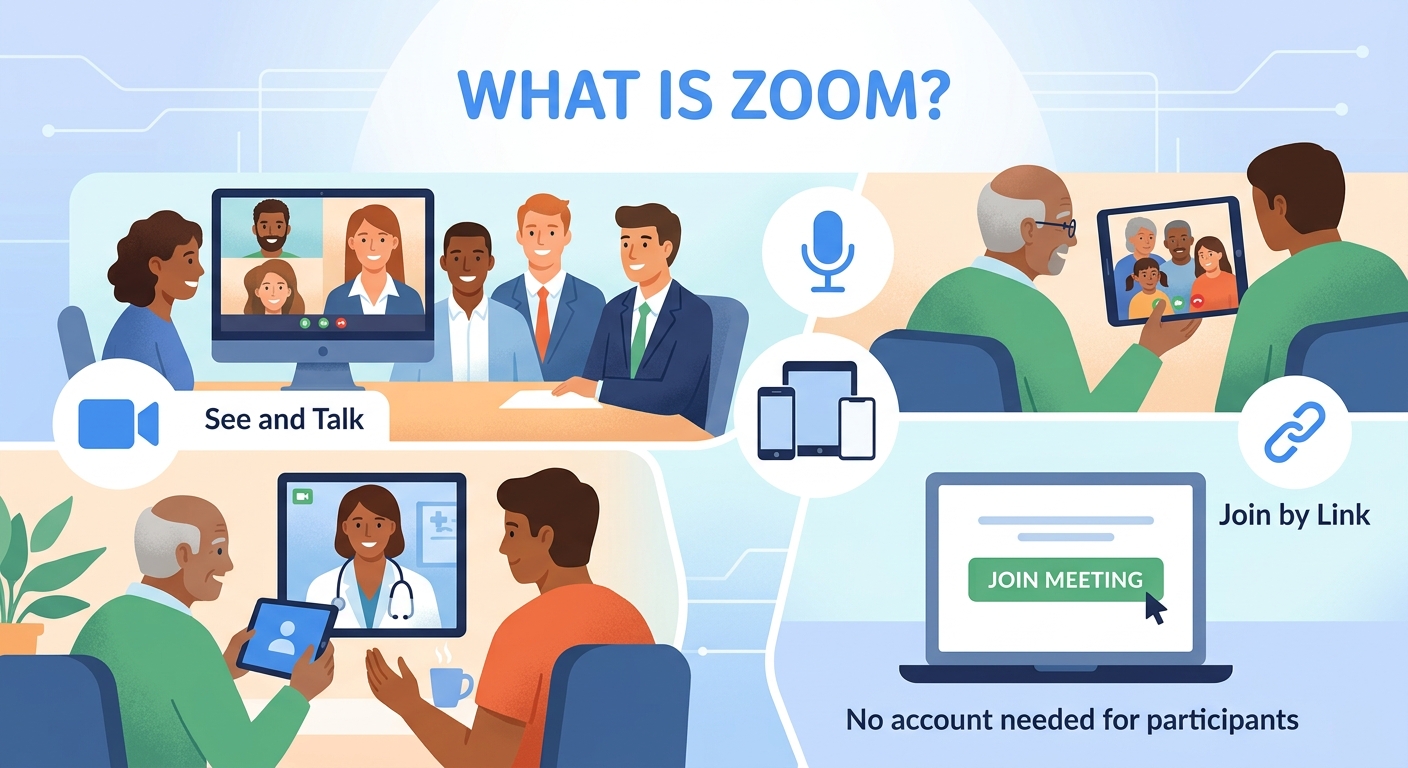
Zoom is a video conferencing application that allows people to meet and talk online.
With Zoom, you can:
- See and talk with other people using your camera and microphone
- Join meetings from your computer, tablet, or smartphone
- Listen without turning on your camera
- Attend doctor appointments or business meetings remotely
- Connect with family and friends
You can join many Zoom meetings simply by clicking the meeting link sent to you by the person hosting the meeting. In most cases, you do not need a Zoom account just to join a meeting as a participant.
What You Need Before Joining a Zoom Meeting
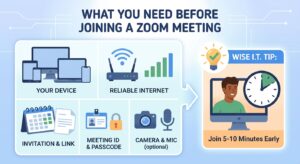
Before your meeting begins, make sure you have:
- A computer, laptop, tablet, or smartphone
- A reliable internet connection
- The Zoom meeting invitation
- The meeting link, Meeting ID, or pass code if required
- A camera and microphone if you want others to see and hear you
Wise I.T. Tip:
Try to join your meeting 5 to 10 minutes early, especially if it is your first time using Zoom.
This gives you time to fix any problems with your camera, microphone, or internet connection.
Test Zoom Before Your First Meeting
If you’re new to Zoom, it’s a good idea to test your computer, camera, microphone, and speakers before joining an important meeting.
Zoom provides a test meeting that allows you to check that everything is working properly.
How to Test Your Zoom Setup
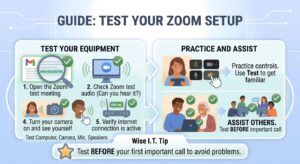
- Open the Zoom test meeting link here:
Test Your Zoom Meeting - Follow the instructions on the screen.
- Check that you can hear the Zoom test audio.
- Make sure your microphone is working.
- Turn your camera on and make sure you can see yourself.
- Check that your internet connection is working properly.
Tip: If you’re helping a parent, grandparent, or someone who is new to Zoom, have them do this test before their first important video call. It can help avoid last-minute problems with the camera, microphone, speakers, or Zoom application.
Want to practice? You don’t need to wait for an actual meeting. Use Zoom’s test meeting to become familiar with the controls and make sure your equipment is ready.
Step 1: Find Your Zoom Meeting Invitation
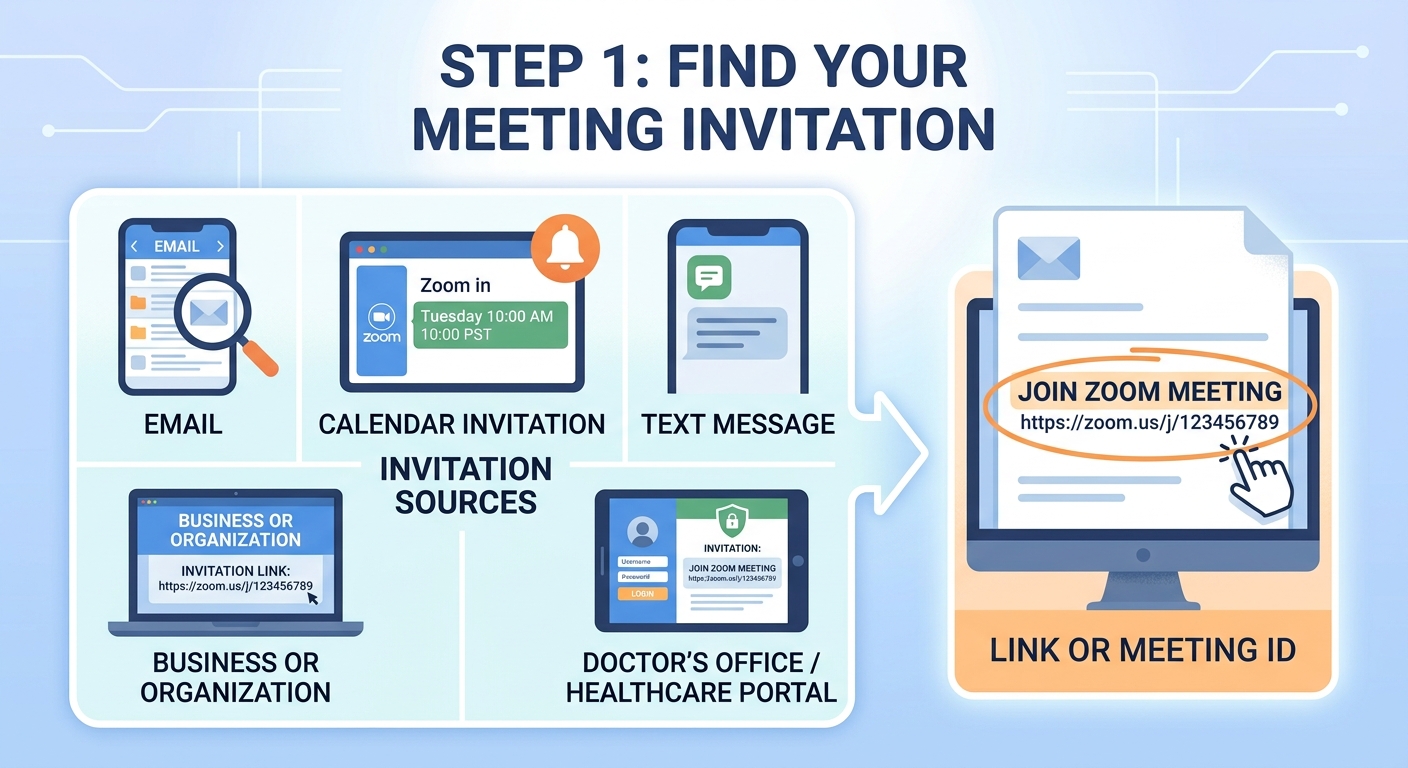
Most Zoom meeting invitations are sent through:
- A calendar invitation
- A text message
- A doctor’s office or healthcare portal
- A business or organization
Look for a message that includes something similar to:
Join Zoom Meeting
Below that, you will usually see a link.
The link may look something like this:
https://zoom.us/j/123456789
You do not need to understand the numbers or the link.
Simply look for the words Join Zoom Meeting and click the link provided by the meeting organizer.
Zoom supports joining meetings through an email or calendar invitation, the Zoom app, or other available methods.
Step 2: Click the Zoom Meeting Link
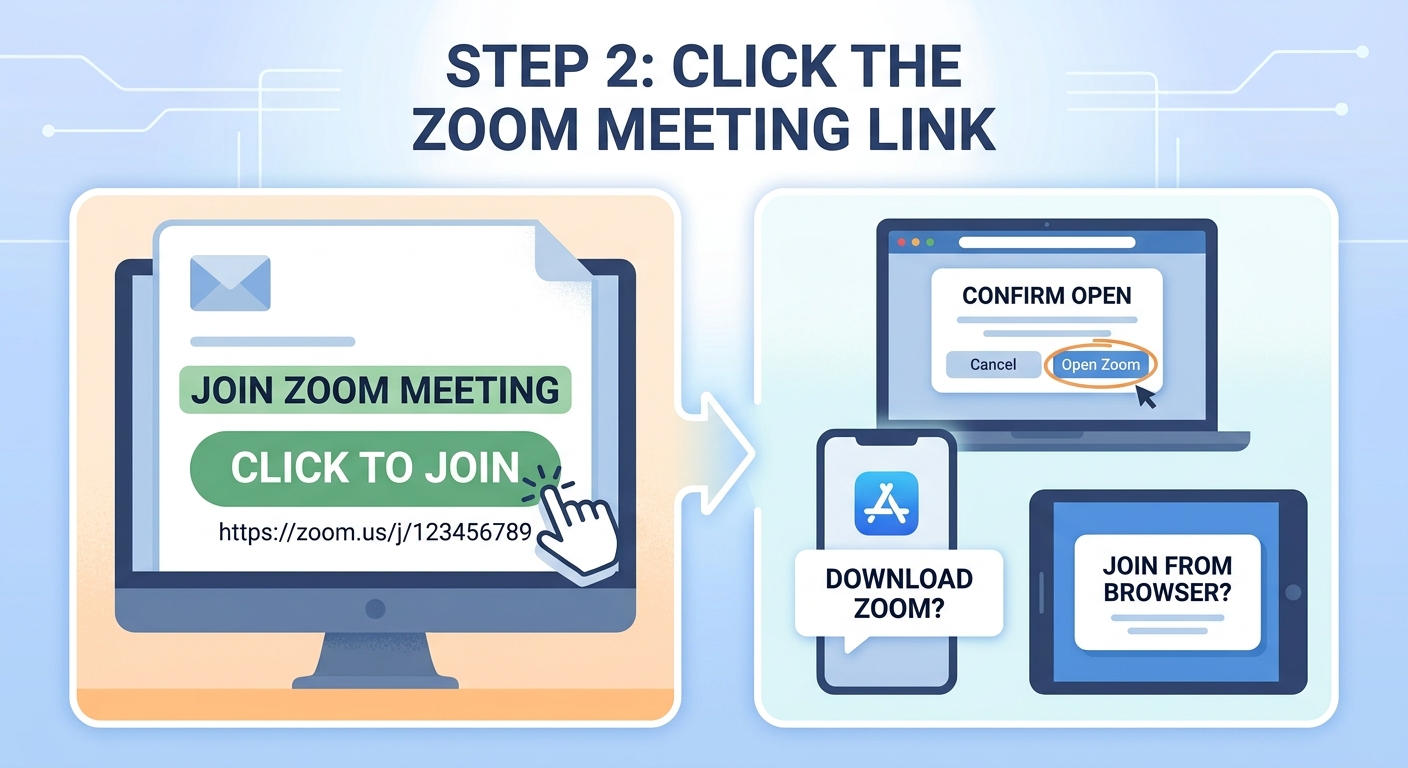
Once you find the invitation, click the Zoom meeting link.
Your computer, tablet, or smartphone may ask you to:
- Open Zoom
- Download Zoom
- Allow Zoom to open
- Join from your browser
If Zoom is already installed on your device, you may see a message asking if you want to open the Zoom application.
Click:
Open Zoom
Your Zoom meeting should begin opening.
Step 3: What If Zoom Is Not Installed?
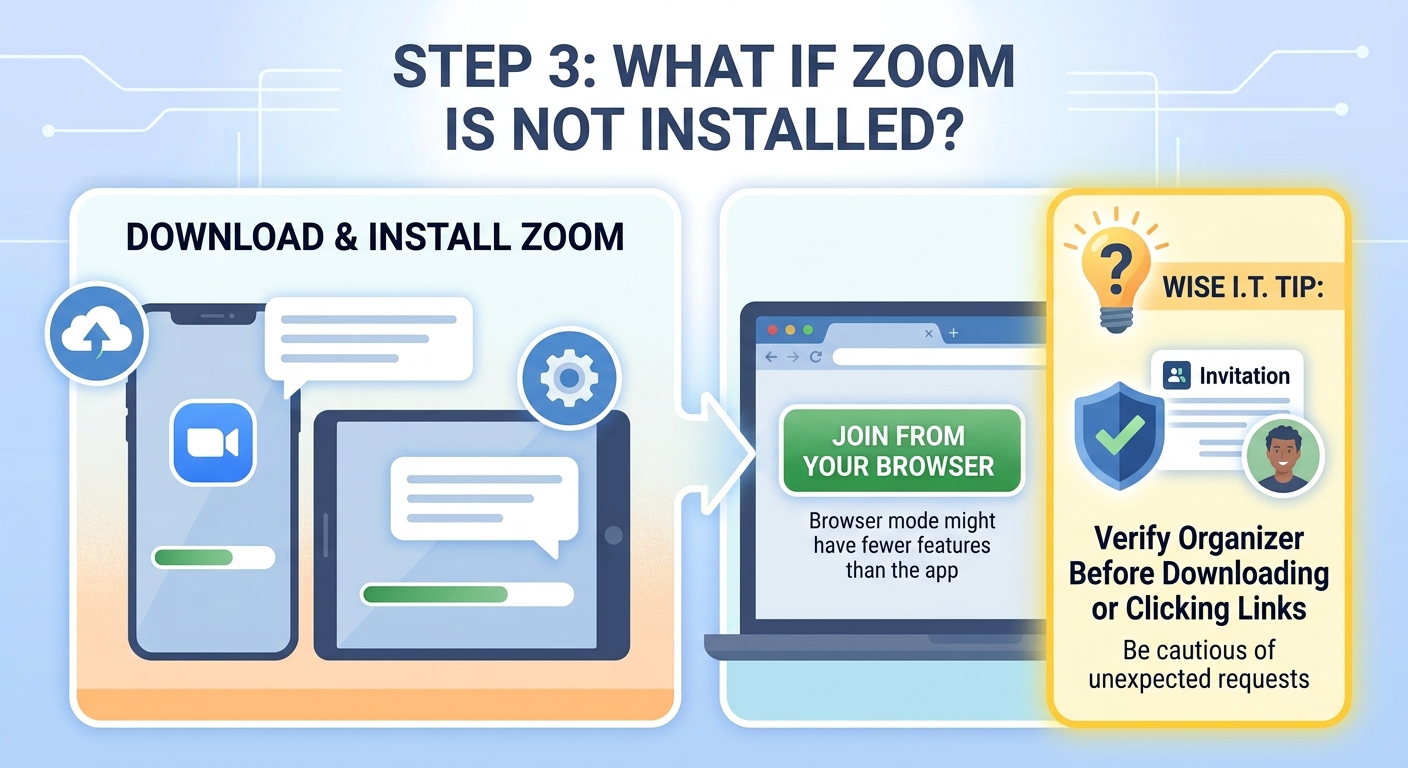
If Zoom is not installed on your computer or device, you may be asked to download the Zoom application.
Follow the instructions on your screen to download and install Zoom.
In some cases, you may also have the option to join from your web browser.
Depending on the meeting host’s settings, Zoom may provide a Join from your browser option. Keep in mind that browser-based Zoom meetings may have fewer features than using the Zoom application.
Wise I.T. Tip:
If you are unsure about downloading Zoom or clicking a link, make sure the invitation came from a person or organization you recognize.
Be cautious with unexpected emails or messages that ask you to download software or provide personal information.
Step 4: Enter Your Name
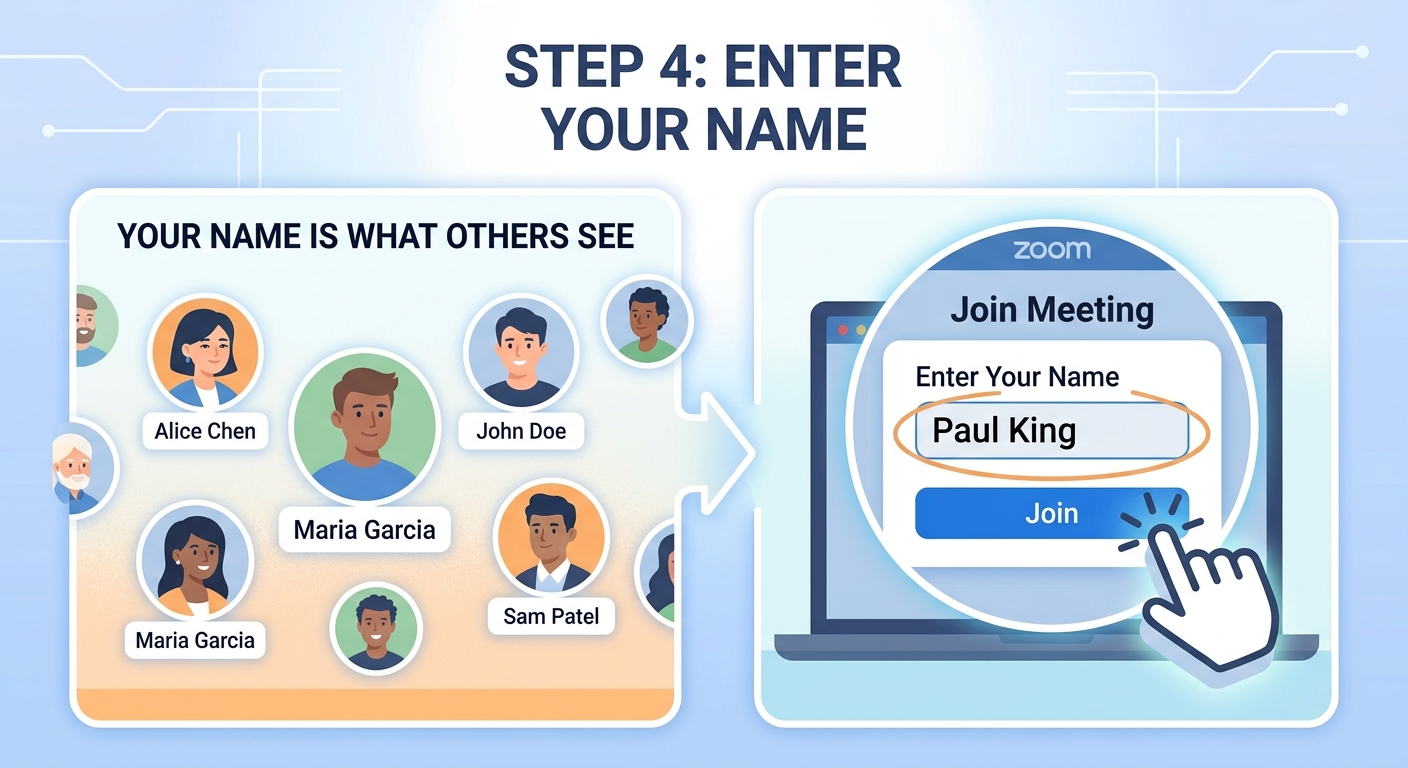
When joining a meeting, Zoom may ask you to enter your name.
This is the name other people in the meeting will see.
For example:
Paul King
You can simply enter your first and last name.
Then click:
Join
Step 5: Allow Zoom to Use Your Camera and Microphone
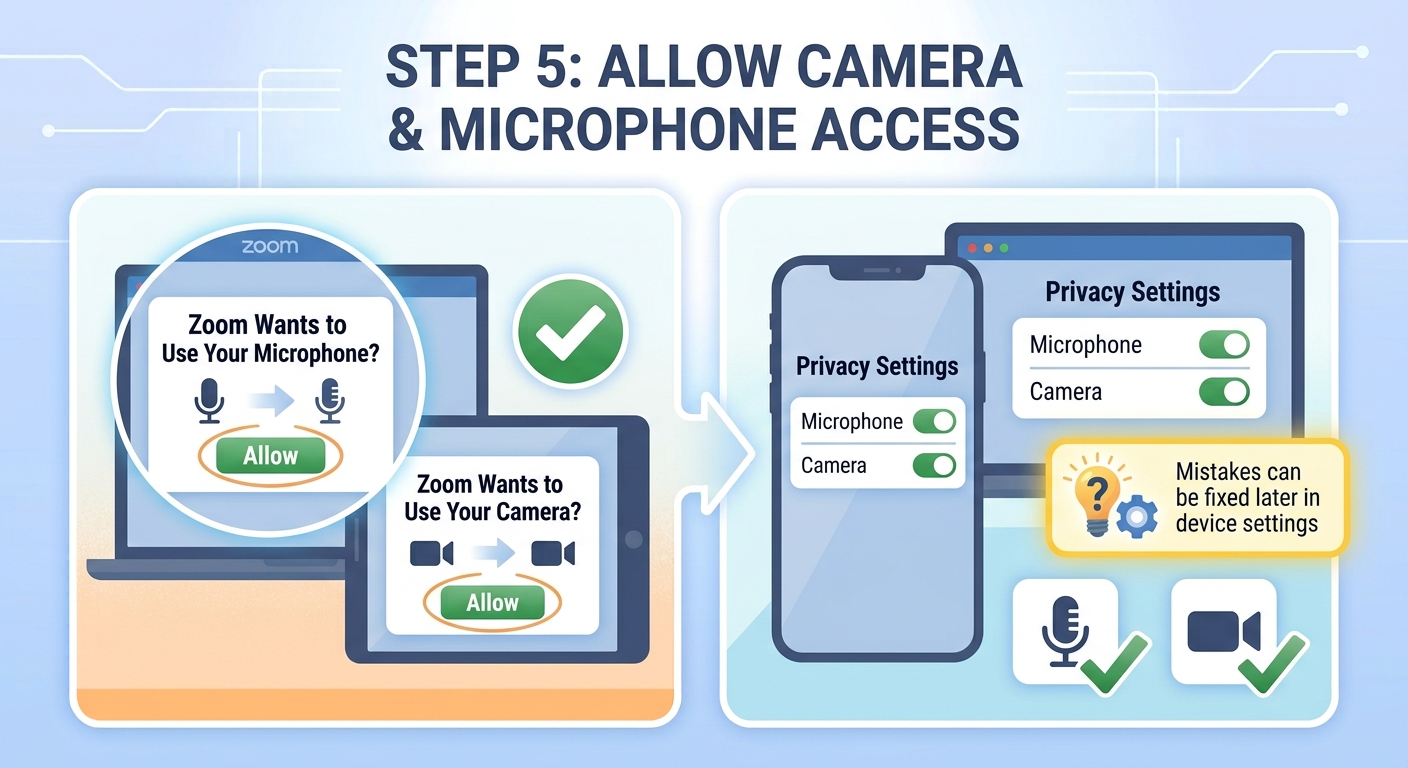
The first time you use Zoom, your computer or device may ask for permission to use your:
🎤 Microphone
📹 Camera
If you want other people to hear and see you, click:
Allow
Zoom requires permission to access your microphone and camera when joining through the web app or browser if you want to use those features.
Don’t worry if you make a mistake.
If you accidentally click Don’t Allow, your camera or microphone may not work. This can usually be fixed later in your computer, phone, browser, or Zoom settings.
Step 6: Check Your Camera Before Joining
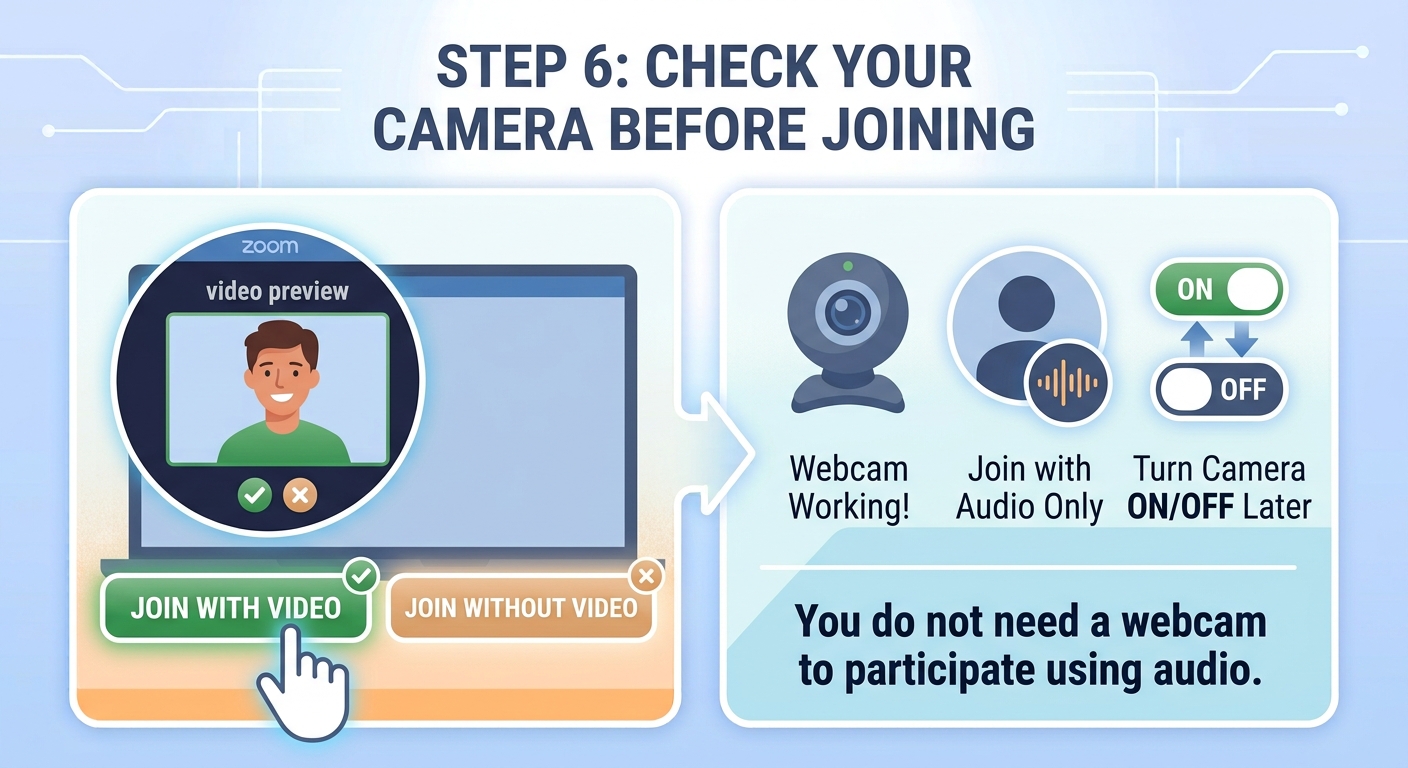
Before you enter the meeting, Zoom may show you a preview of your camera.
You should see yourself on the screen.
If you can see yourself, your camera is working.
You may see a button that says:
Join with Video
or
Join without Video
If you want people to see you:
Choose Join with Video.
If you do not want to be on camera:
Choose Join without Video.
Remember, you can usually turn your camera on or off after joining the meeting.
You do not need a webcam to join a Zoom meeting. You can participate using audio only and still listen to and see other participants.
Step 7: Join the Meeting Audio
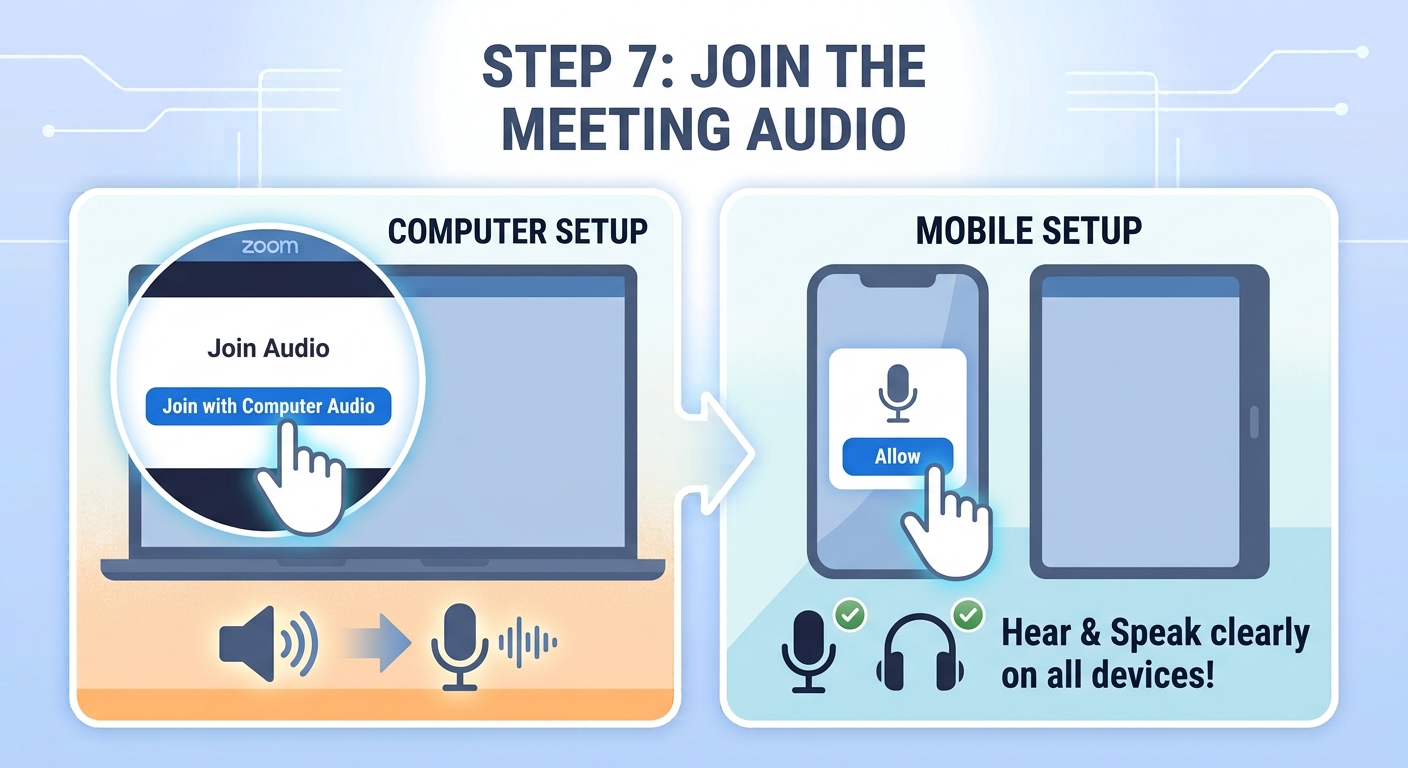
After joining the meeting, Zoom may ask how you want to connect your audio.
On a computer, you may see:
Join with Computer Audio
Click that option.
This allows you to hear other people through your computer speakers and talk using your microphone.
On a smartphone or tablet, Zoom may ask for permission to use your microphone.
Click:
Allow
Step 8: Wait for the Meeting to Begin
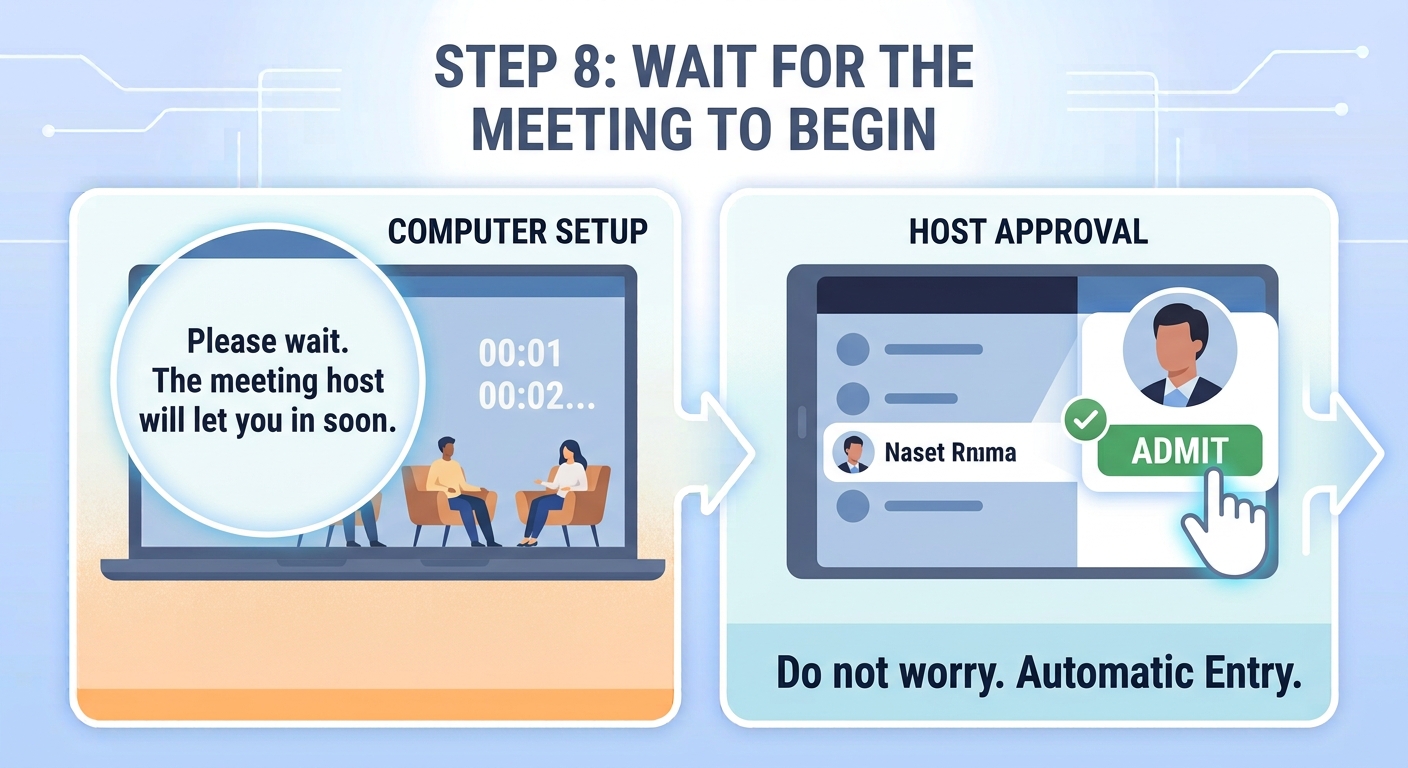
Sometimes you may not enter the meeting immediately.
You may see a message saying something similar to:
Please wait. The meeting host will let you in soon.
This is called a Waiting Room.
Do not worry.
The meeting host simply needs to approve you before you can enter.
Once the host allows you into the meeting, you will automatically enter.
Understanding the Basic Zoom Controls
Once you are inside the Zoom meeting, you will see several buttons.
These controls may appear at the bottom of your computer screen or on your smartphone.
Here are the most important ones to know.
🎤 Mute and Unmute
Look for the microphone button.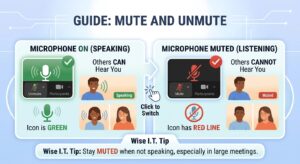
When your microphone is ON:
Other people may be able to hear you.
When your microphone is MUTED:
Other people cannot hear you.
It is often a good idea to stay muted when you are not speaking, especially in a large meeting.
Click the microphone button to switch between:
Mute
and
Unmute
Zoom’s participant controls allow you to mute and unmute your microphone once your audio is connected.
📹 Turn Your Camera On or Off
Look for the camera button.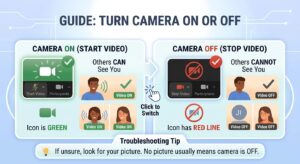
You may see:
Start Video
or
Stop Video
Start Video:
Turns your camera ON.
Stop Video:
Turns your camera OFF.
If you are unsure whether your camera is on, look for your picture on the screen.
💬 Chat
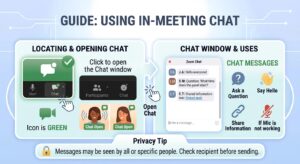 The Chat button allows you to send messages to other people in the meeting.
You may use the chat to:
- Ask a question
- Say hello
- Share information
- Communicate if your microphone is not working
Remember that other people in the meeting may be able to see your message, depending on who you are sending it to.
👥 Participants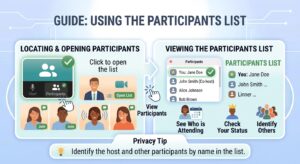
The Participants button shows you who is currently in the meeting.
You can use it to see:
- Who is attending
- Your own name
- Other participants
🖥️ Share Screen
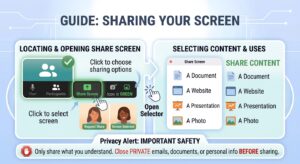
The Share Screen button allows you to show something from
your computer to other people in the meeting.
For example, you might share:
- A document
- A website
- A presentation
- A photo
Important:
Only share your screen when you understand what will be visible.
Close any private emails, documents, or personal information before sharing your screen.
How to Leave a Zoom Meeting
When your meeting is finished, look for the: 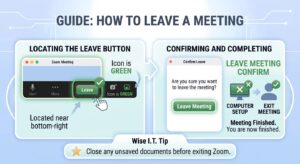
Leave button.
On a computer, it is often located near the bottom-right corner of the Zoom window.
Click:
Leave
Zoom may ask you to confirm.
Click:
Leave Meeting
You are now finished.
That’s it!
Common Zoom Problems and Simple Solutions
Even experienced computer users occasionally have problems with Zoom.
Here are some common issues and what you can try.
Problem: Nobody Can Hear Me
First, check to see if you are muted. 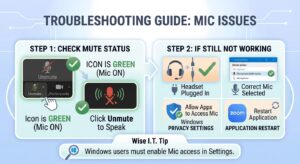
Look at the microphone button.
If it says:
Unmute
Click it to turn your microphone on.
If your microphone still does not work:
- Check that your headset is plugged in
- Make sure the correct microphone is selected
- Check your computer’s microphone permissions
- Restart Zoom if necessary
On Windows, microphone access must be enabled in your privacy settings for applications to use your microphone.
Problem: I Cannot Hear Anyone 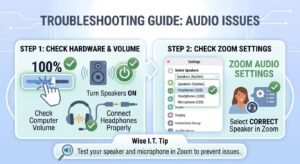
Check your computer or device volume.
Make sure:
🔊 Your speakers are turned on.
🎧 Your headphones are connected properly.
You can also check Zoom’s audio settings to make sure the correct speakers are selected.
Problem: My Camera Is Not Working 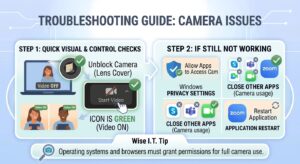
Try these steps:
- Make sure your camera is not covered.
- Click Start Video.
- Make sure Zoom has permission to use your camera.
- Close other applications that may be using your camera.
- Restart Zoom.
Zoom may need permission from your operating system or browser before it can access your camera.
Problem: I Cannot Join the Meeting 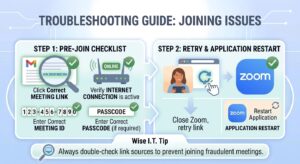
Check that:
- You clicked the correct meeting link
- Your internet connection is working
- You entered the correct Meeting ID
- You entered the correct pass code if one is required
You can also try closing Zoom and opening the meeting link again.
Practice Makes Zoom Easier
The first time you use Zoom may feel confusing.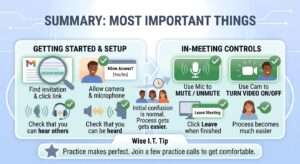
That is completely normal.
After joining a few meetings, the process becomes much easier.
The most important things to remember are:
- Find the Zoom meeting invitation.
- Click the meeting link.
- Allow your camera and microphone if you want to use them.
- Check that you can hear and be heard.
- Use the microphone button to mute and unmute.
- Use the camera button to turn your video on and off.
- Click Leave when the meeting is finished.
Need Help With Zoom or Video Conferencing?
Technology should make life easier, not more stressful.
If you need help setting up Zoom, Microsoft Teams, Google Meet, your camera, microphone, or another
video conferencing application, Wise I.T. can help.
We provide friendly computer support for home users and businesses and can help troubleshoot common technology problems remotely or in person.
Whether you are preparing for an important business meeting, a telehealth appointment, or simply
want to stay connected with family and friends, Wise I.T. can help you feel more comfortable using technology.
Need Technology Help?
Contact Wise I.T. Computer Services for assistance with:
- Zoom setup and troubleshooting
- Microsoft Teams support
- Google Meet support
- Camera and microphone problems
- Computer setup
- Remote computer support
- Home technology support
- Business IT support
Wise I.T. Computer Services
Helping make technology easier for everyone.
The post How to Join a Zoom Meeting: A Simple Step-by-Step Guide first appeared on Wise I.T. Computer & Network Solutions.