
How to Monitor Your Kids on the Internet: The Best Parental Controls for Phones, Computers, and Gaming Consoles
Protecting your children online takes more than just setting up a Wi-Fi password. Today’s kids have access to smartphones, tablets, computers, gaming consoles, social media, and countless websites. While technology offers incredible opportunities for learning and entertainment, it also exposes children to inappropriate content, cyberbullying, online predators, scams, and other potential dangers.
Many parents assume that installing a firewall or setting up restrictions on their home Wi-Fi is enough to keep their children safe. Unfortunately, that’s not always the case.
What happens when your child leaves home, disconnects from Wi-Fi, and starts using cellular data? What about the conversations happening through gaming consoles, social media applications, and online multiplayer games?
These are questions every parent should be asking.
Recent coverage on CBS’s 60 Minutes about Australia’s restrictions on social media accounts for children under 16 has brought renewed attention to the challenges of protecting kids online. The discussion highlights a much bigger issue: parents need to understand what their children are accessing, who they’re communicating with, and how today’s technology works.
At Wise I.T. Computer & Network Solutions, we believe that understanding your technology is the first step toward protecting your family.
Let’s explore some of the best ways to monitor your children’s Internet activity and create a safer digital environment.
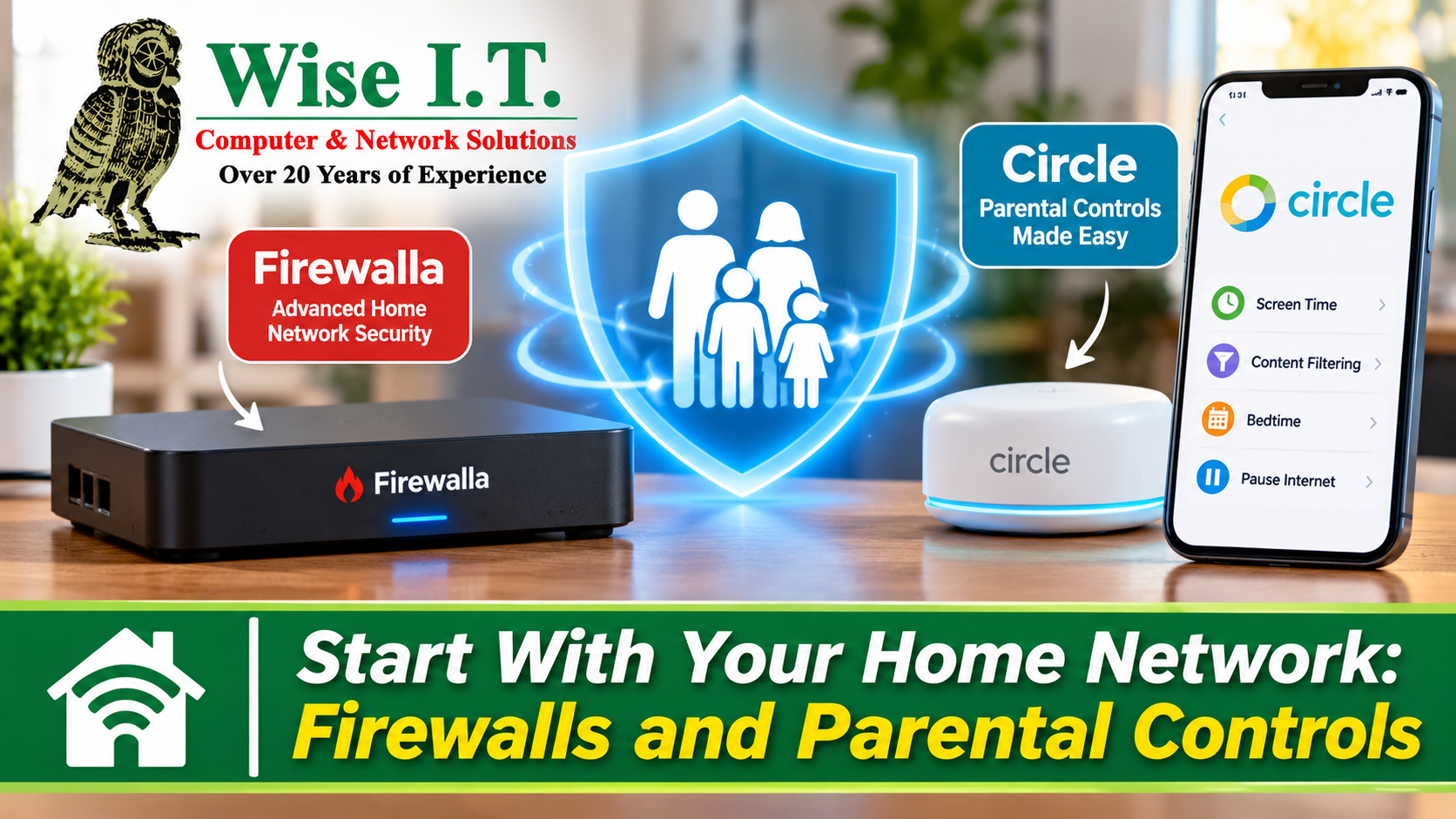
1. Start With Your Home Network: Firewalls and Parental Controls
One of the best places to begin protecting your family is your home network.
A network firewall can help parents manage Internet access, restrict inappropriate websites, identify connected devices, and monitor network activity.
Two products worth considering are Firewalla and Circle.
Firewalla: Advanced Home Network Protection
Firewalla is a powerful network security device that connects to your home network and provides visibility and control over the devices using your Internet connection.
Some of its useful features include:
- Device monitoring: Identify computers, smartphones, tablets, smart TVs, and other connected devices.
- Website restrictions: Block inappropriate websites and online content.
- Internet scheduling: Establish Internet access schedules for individual devices.
- Activity monitoring: Review network activity and connections.
- VPN protection: Identify and help block certain VPN services that could be used to bypass network restrictions.
- Security protection: Help protect your household from malicious websites, suspicious connections, and other network threats.
Firewalla is particularly useful for families who want more control over their entire home network.
However, there is an important limitation: Firewalla primarily protects devices when their Internet traffic passes through your home network.
If your child takes their smartphone to school, a friend’s house, or another location and switches to cellular data, your home firewall generally cannot monitor that activity.
VPNs, encrypted DNS, and privacy services can also interfere with network-based filtering.
Best for: Parents who want advanced security, network visibility, and Internet controls for devices connected to their home network.
Product website: https://firewalla.com/
Circle: Parental Controls Made for Families
Circle, originally introduced as Disney Circle, is another popular parental control solution.
Circle is designed to help parents manage their children’s Internet usage without having to configure complicated network settings.
Features include:
- Content filtering by age and category.
- Daily Internet usage limits.
- Bedtime schedules.
- Internet pauses.
- Device-specific controls.
- Usage reporting.
- Filtering and management for supported mobile devices outside the home.
One feature worth understanding is Circle’s mobile application.
With the Circle Kid app installed and configured on supported smartphones and tablets, Circle can extend certain parental controls beyond the home Wi-Fi network. It uses a local VPN connection on the device to apply filtering and usage rules over cellular data and other Wi-Fi networks.
This makes Circle different from a traditional home-only router solution.
However, Circle does not disable cellular service itself, and it does not monitor standard cellular phone calls or SMS messages.
Best for: Families looking for straightforward parental controls, content filtering, schedules, and supported mobile device management.
Product website: https://meetcircle.com/
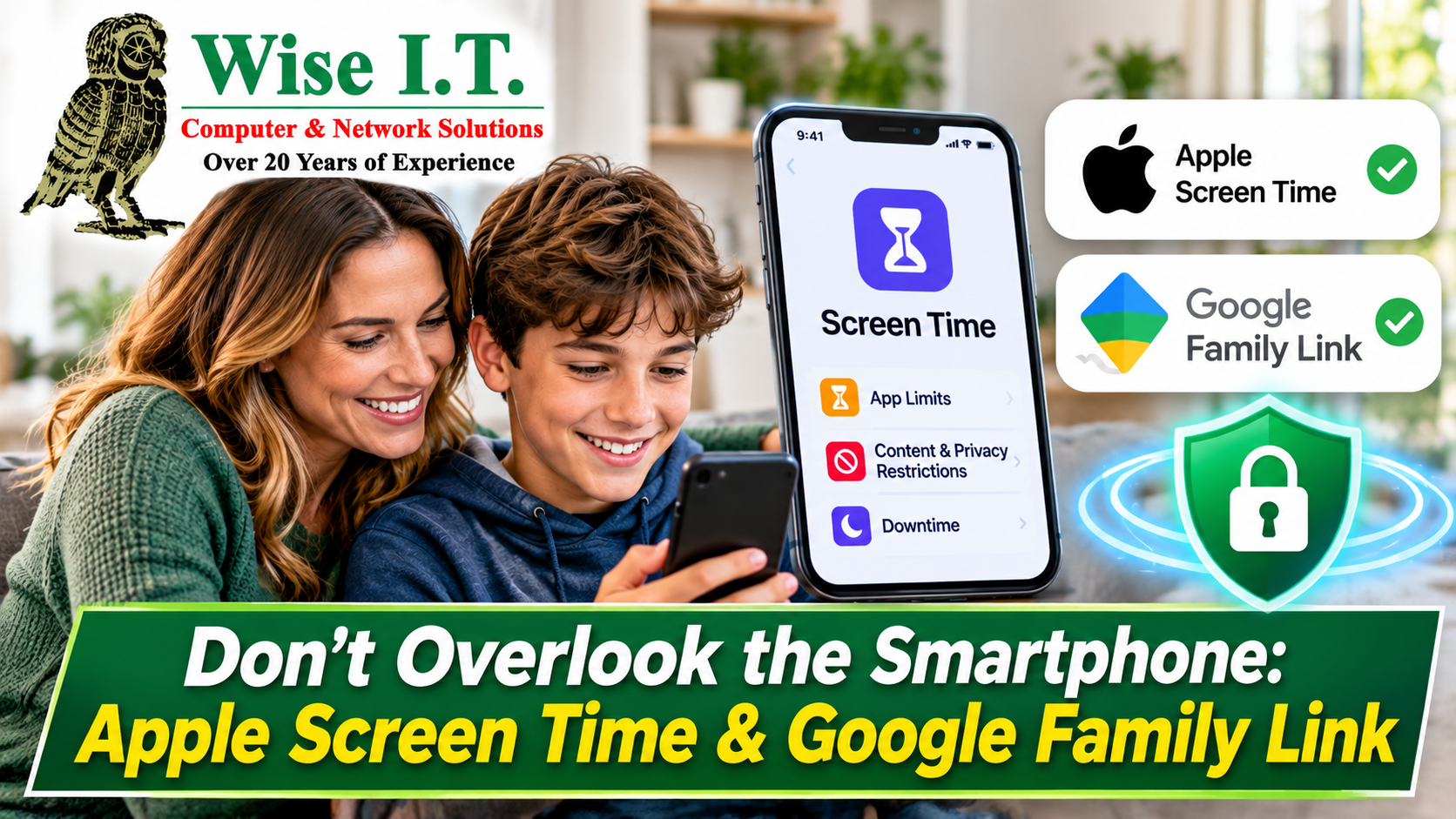
2. Don’t Overlook the Smartphone: Apple Screen Time and Google Family Link
This is where many parents should start.
Even if you have an advanced firewall at home, your child’s smartphone can connect to the Internet almost anywhere.
Fortunately, Apple and Google offer built-in parental control features that work directly with their respective devices.
These controls are especially important because they don’t depend on your home router.
Apple Screen Time (iPhone and iPad)
If your child uses an iPhone or iPad, Apple’s Screen Time features are an excellent starting point.
Through Family Sharing, parents can manage many of their child’s device settings remotely.
Features include:
- Review app and website usage.
- Set daily app limits.
- Establish downtime schedules.
- Restrict adult websites.
- Block specific apps and websites.
- Control age-appropriate content.
- Manage communication limits.
- Require approval for certain purchases and downloads.
Because these controls are built into the Apple operating system, they continue to apply when your child uses cellular data instead of your home Wi-Fi.
To get started, configure Family Sharing and Screen Time through your Apple device’s Settings.
Official instructions: https://support.apple.com/en-us/108806
Best for: Parents with children using iPhones and iPads who want free, built-in device restrictions.
Google Family Link (Android Devices)
For children using Android smartphones and tablets, Google Family Link provides another excellent starting point.
Parents can use the Family Link application to manage their child’s Google account and compatible devices.
Features include:
- Review app usage and screen time.
- Approve or block app downloads.
- Set daily screen time limits.
- Establish device bedtime schedules.
- Manage website restrictions in Chrome.
- Configure Google SafeSearch.
- Manage YouTube content settings.
- View supported device location information.
Family Link is particularly useful for younger children who are just beginning to use smartphones.
One important consideration: Some supervision features change when children reach the applicable age to manage their own Google accounts. In the United States, this is generally age 13.
Also, website filtering in Family Link is browser-specific. Chrome restrictions do not automatically apply to every other browser installed on a device.
Official instructions: https://families.google/familylink/
Best for: Parents who want free Android device supervision, app approval, and screen time management.
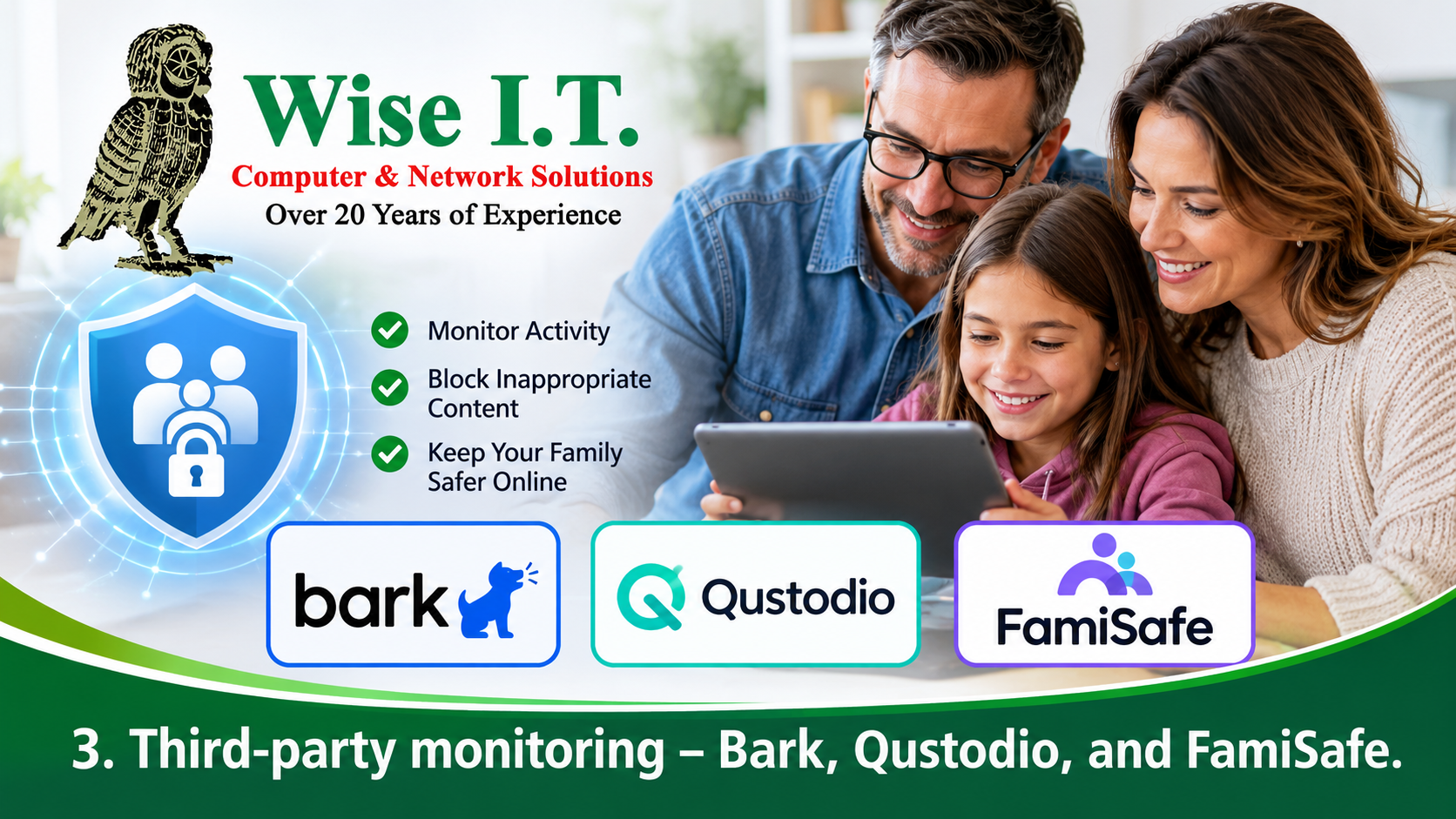
3. Third-Party Parental Control Software: More Detailed Monitoring
Built-in parental controls are a great starting point, but some parents want additional visibility into their children’s online activities.
This is where dedicated parental monitoring applications can help.
Three products worth researching are Bark, Qustodio, and FamiSafe.
Bark: Monitoring Social Media, Text Messages, and Online Safety
Bark takes a different approach to parental monitoring.
Instead of simply showing parents everything their children do, Bark analyzes supported communications and activities for potentially concerning content.
It can alert parents to issues involving:
- Cyberbullying.
- Inappropriate conversations.
- Sexual content.
- Online predators.
- Self-harm concerns.
- Threats and violence.
- Suspicious social media activity.
Bark supports monitoring across numerous social media platforms, messaging services, email accounts, and other supported applications.
Parents receive alerts when potentially concerning activity is detected.
This can be particularly helpful for parents of teenagers who want to stay informed without necessarily reading every conversation.
Important iPhone consideration: Apple’s privacy restrictions limit what third-party applications can access directly. For deeper monitoring of iMessages, photos, videos, and other device content, Bark may require its desktop application or optional Bark Sync hardware. Android monitoring has different capabilities.
Bark also offers screen time management and website and application filtering.
Best for: Parents concerned about social media, cyberbullying, inappropriate messages, and potentially dangerous online interactions.
Product website: https://www.bark.us/
Qustodio: Detailed Web and Search Activity Monitoring
Qustodio is another popular parental control solution that provides more detailed visibility into a child’s digital activity.
Depending on the device and subscription, features include:
- Web browsing history.
- Search activity.
- YouTube activity.
- Application usage.
- Website blocking.
- Screen time limits.
- Social media monitoring.
- Location tracking.
- Alerts about potentially concerning searches.
For parents who want to understand what their children are searching for online, Qustodio offers useful reporting features.
It also supports multiple operating systems, including Android, iOS, Windows, Mac, and Chromebook, although individual features vary by platform.
Best for: Parents who want more detailed activity reports, web filtering, search monitoring, and screen time management.
Product website: https://www.qustodio.com/
FamiSafe: Additional Content and Activity Detection
FamiSafe is another option for families looking for additional monitoring features.
Depending on the device and subscription, it offers:
- Screen time management.
- Website filtering.
- App usage monitoring.
- Location tracking.
- Keyword alerts.
- Suspicious content detection.
- Photo-related safety features.
FamiSafe can provide another layer of protection for parents who want to identify potentially concerning activity.
As with other monitoring applications, the available features depend on the operating system, device permissions, and application compatibility.
Best for: Parents looking for additional content detection, screen time controls, and device monitoring.
Product website: https://famisafe.wondershare.com/
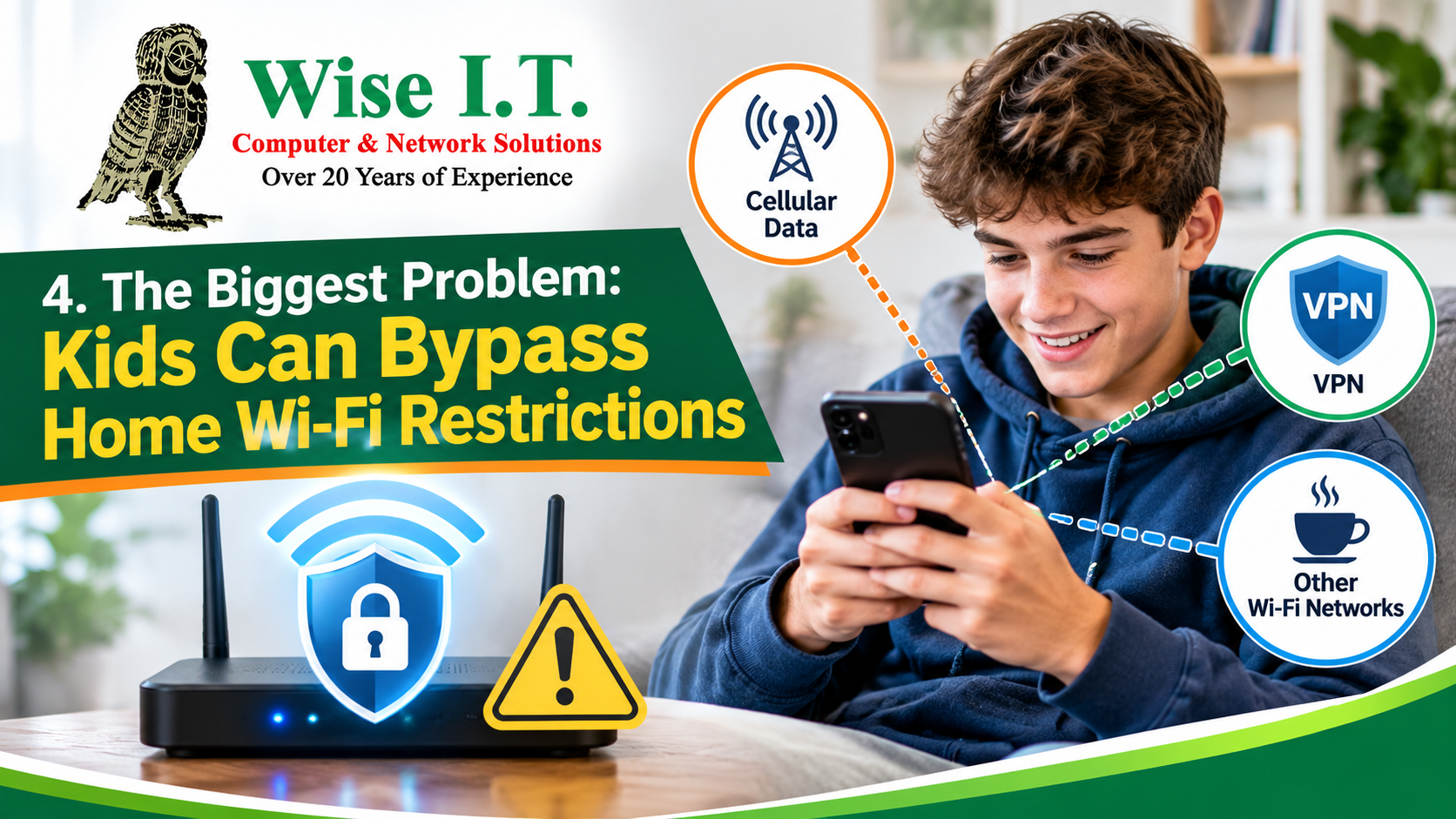
4. The Biggest Problem: Kids Can Bypass Home Wi-Fi Restrictions
Here is something every parent should understand.
You could spend money on an excellent firewall, configure website restrictions, block inappropriate content, and establish Internet schedules.
But what happens when your child walks out the front door?
If they have a smartphone with an active cellular plan, they can simply disconnect from your home Wi-Fi and use their carrier’s cellular network.
Your home firewall is no longer in the path of their Internet traffic.
That means:
- Your home router cannot see their cellular browsing activity.
- Home network website restrictions may no longer apply.
- Your home network’s Internet schedules cannot control their cellular connection.
- Network activity reports will not show everything they do away from home.
There are other ways children may attempt to bypass parental controls, including:
- Downloading free VPN applications.
- Installing alternative web browsers.
- Using encrypted DNS services.
- Using private browsing features.
- Accessing websites through applications rather than a browser.
- Using another person’s device.
Firewalla offers bypass prevention features for certain VPN, encrypted DNS, and privacy services on the home network. However, those protections do not automatically extend to cellular connections outside the home.
This is why relying on just one firewall or router is not enough.
The solution is to combine network-level protection with device-level parental controls.
5. What Is the Best Combination of Parental Controls?
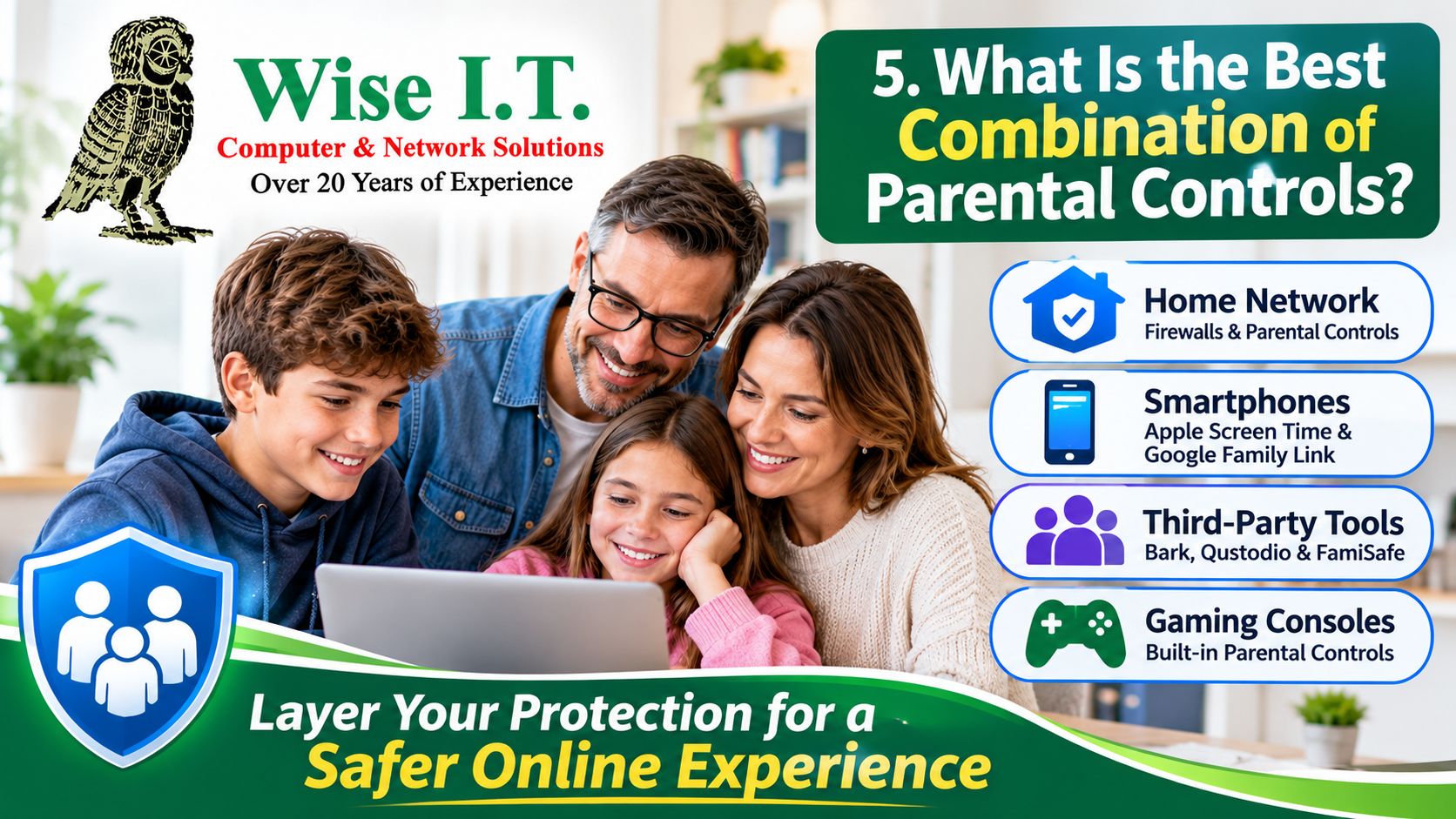
For most families, we recommend using multiple layers of protection rather than relying on one product.
Here is a practical starting point:
| Protection | Recommended Solution |
| Home network security | Firewalla |
| Home Internet schedules | Firewalla or Circle |
| iPhone and iPad controls | Apple Screen Time |
| Android device controls | Google Family Link |
| Social media monitoring | Bark |
| Detailed browsing reports | Qustodio |
| Additional content detection | FamiSafe |
You don’t necessarily need to purchase every product.
For many families, starting with Apple Screen Time or Google Family Link and adding a home network firewall will provide a good foundation.
Parents who want more detailed monitoring can consider Bark or Qustodio.
The best combination depends on your children’s ages, devices, and how much visibility and control you want.
6. Don’t Forget About Computers and Other Connected Devices
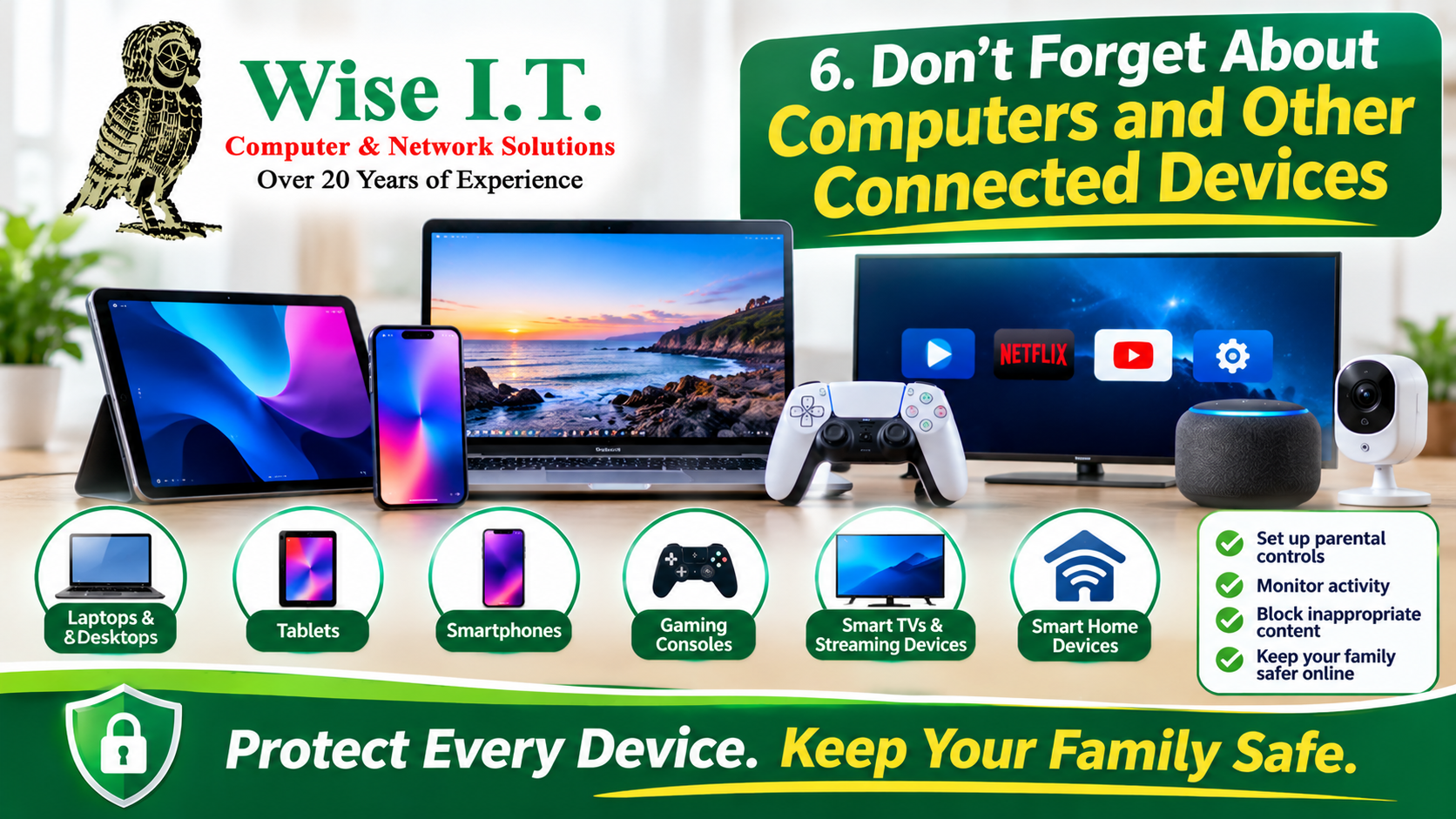
Smartphones aren’t the only devices parents need to consider.
Children may also access the Internet through:
- Windows computers and laptops.
- Apple Mac computers.
- Chromebooks.
- iPads and tablets.
- Smart TVs.
- Amazon Fire tablets.
- Gaming and messaging applications.
Each device may have its own parental control settings.
For example, Windows and Apple computers offer built-in family safety features. Gaming platforms also provide options for restricting purchases, limiting communication with other players, managing screen time, and controlling age-appropriate content.
Home network firewalls can help manage Internet access for many of these devices, while operating system and application controls provide additional protection.
The goal is to avoid leaving an unprotected device as an easy workaround.
7. Gaming Consoles: Nintendo, PlayStation, and Xbox Parental Controls
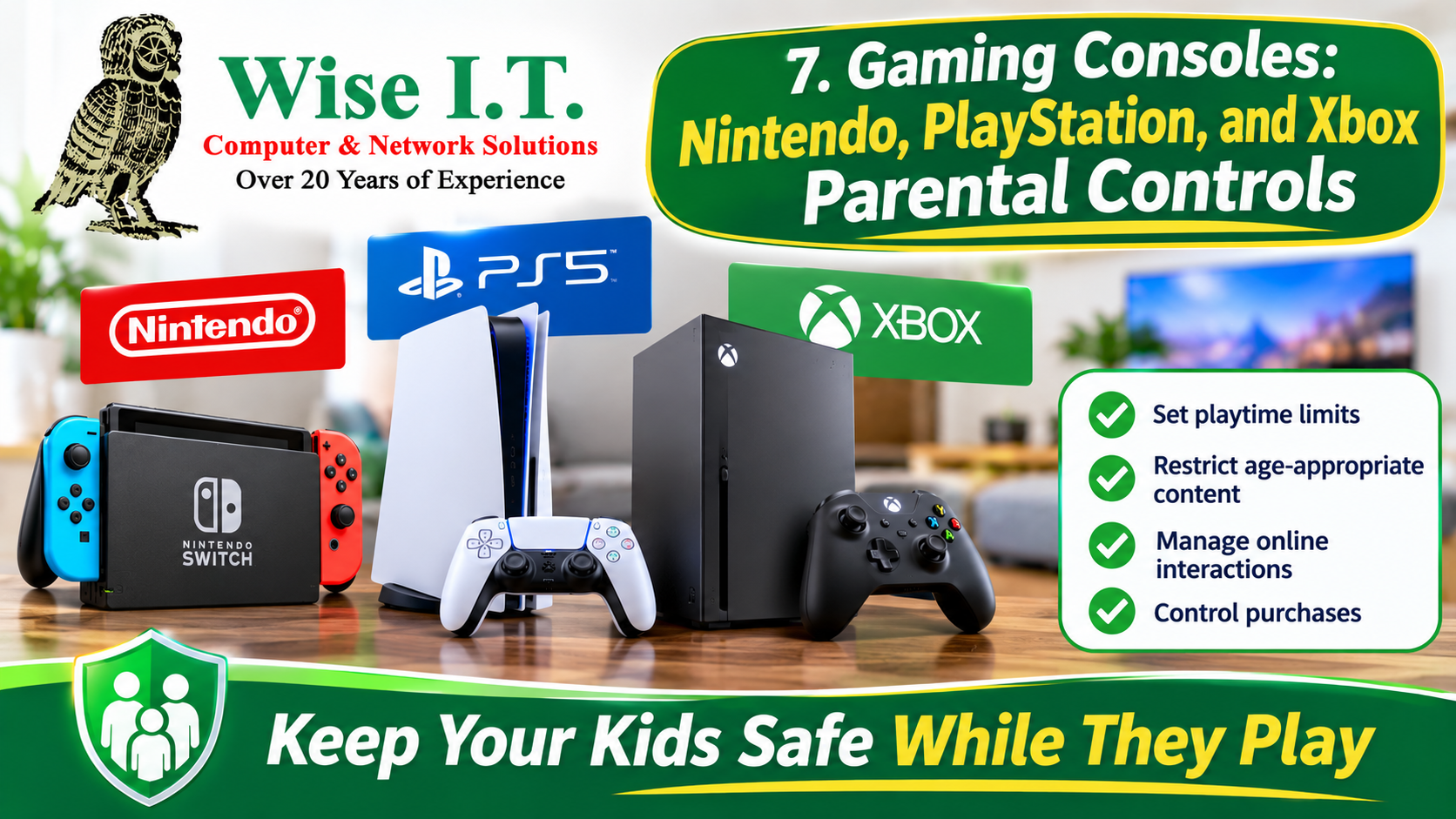
One area parents frequently overlook is online gaming.
Gaming consoles are no longer just devices for playing video games. Today’s systems allow children to communicate with strangers, join multiplayer communities, exchange messages, use voice chat, share images, and interact with other players around the world.
Many parents don’t realize just how much online interaction can happen through a gaming console.
A child might appear to be playing a simple video game, but they could also be talking to strangers through a headset, receiving messages, joining online communities, or interacting with people they have never met.
The three major gaming platforms all offer parental control tools. Parents should take advantage of them.
Nintendo Switch and Nintendo Switch 2
Nintendo offers a free Nintendo Switch Parental Controls app that allows parents to manage their children’s gaming activity.
Parents can:
- Set daily gaming time limits.
- Establish bedtime restrictions.
- Restrict games based on age ratings.
- Limit in-game communication.
- Restrict sharing and viewing user-generated content.
- Manage certain online purchasing activities.
- Review gaming activity and monthly reports.
- Receive notifications about newly downloaded games.
Nintendo Switch 2 also introduces GameChat, which allows players to communicate using voice or video while gaming.
Parents should pay particular attention to these communication features.
For players younger than 16, parental approval is required when starting a video chat through GameChat. Parents can also review supported GameChat history, including who their child played with and for how long.
Official Nintendo parental control resources:
Nintendo Online Safety and Privacy
Nintendo Switch Parental Controls App
Sony PlayStation 5 and PlayStation 4
PlayStation offers family management and parental controls through its account settings.
Parents can:
- Restrict communication with other players.
- Control who can interact with their children.
- Restrict user-generated content.
- Set daily gaming schedules and playtime limits.
- Establish monthly spending limits.
- Restrict access to certain games and features.
- Manage privacy settings.
- Prevent children from changing certain account restrictions.
Parents should create individual child accounts rather than allowing children to use an adult account.
This makes it easier to manage age restrictions and monitor their gaming experience.
One particularly important feature is the ability to manage communication with other players. Parents can decide whether their children can send messages, communicate through voice chat, or interact with user-generated content.
Official Sony parental control resources:
PlayStation Safety for Parents
Microsoft Xbox Series X|S and Xbox One
Microsoft provides the Xbox Family Settings app, allowing parents to manage their children’s gaming activity from a smartphone.
Available controls include:
- Set daily screen time limits.
- Establish schedules for when children can play.
- Approve or restrict multiplayer gaming.
- Manage friend requests.
- Control voice and text communication.
- Restrict access to age-inappropriate games.
- Manage purchases and spending.
- Review activity reports.
- Control privacy settings and online interactions.
Parents can also manage settings through their Microsoft family account.
One particularly useful feature is the ability to control who can communicate with your child and whether they can participate in multiplayer games.
Official Microsoft parental control resources:
Xbox Family Settings and Parental Controls
An Important Reminder About Gaming Safety
Parental controls can help restrict access and manage online interactions, but they don’t automatically make every online gaming experience safe.
Children should understand:
- Not everyone online is who they claim to be.
- Never share their real name, address, school, or phone number with strangers.
- Be cautious about accepting friend requests from unknown players.
- Never agree to move conversations to another platform without parental guidance.
- Report bullying, harassment, inappropriate messages, and suspicious behavior.
- Tell a parent if another player makes them uncomfortable.
Parents should periodically review their children’s gaming friends, communication settings, and account permissions.
Don’t assume that because your child is playing a video game, they’re only interacting with the game itself. They may also be communicating with people they have never met.
For a helpful overview of parental controls across gaming systems, visit the Entertainment Software Rating Board (ESRB) Parental Controls Guide.
8. Technology Is Important, But Communication Matters Too
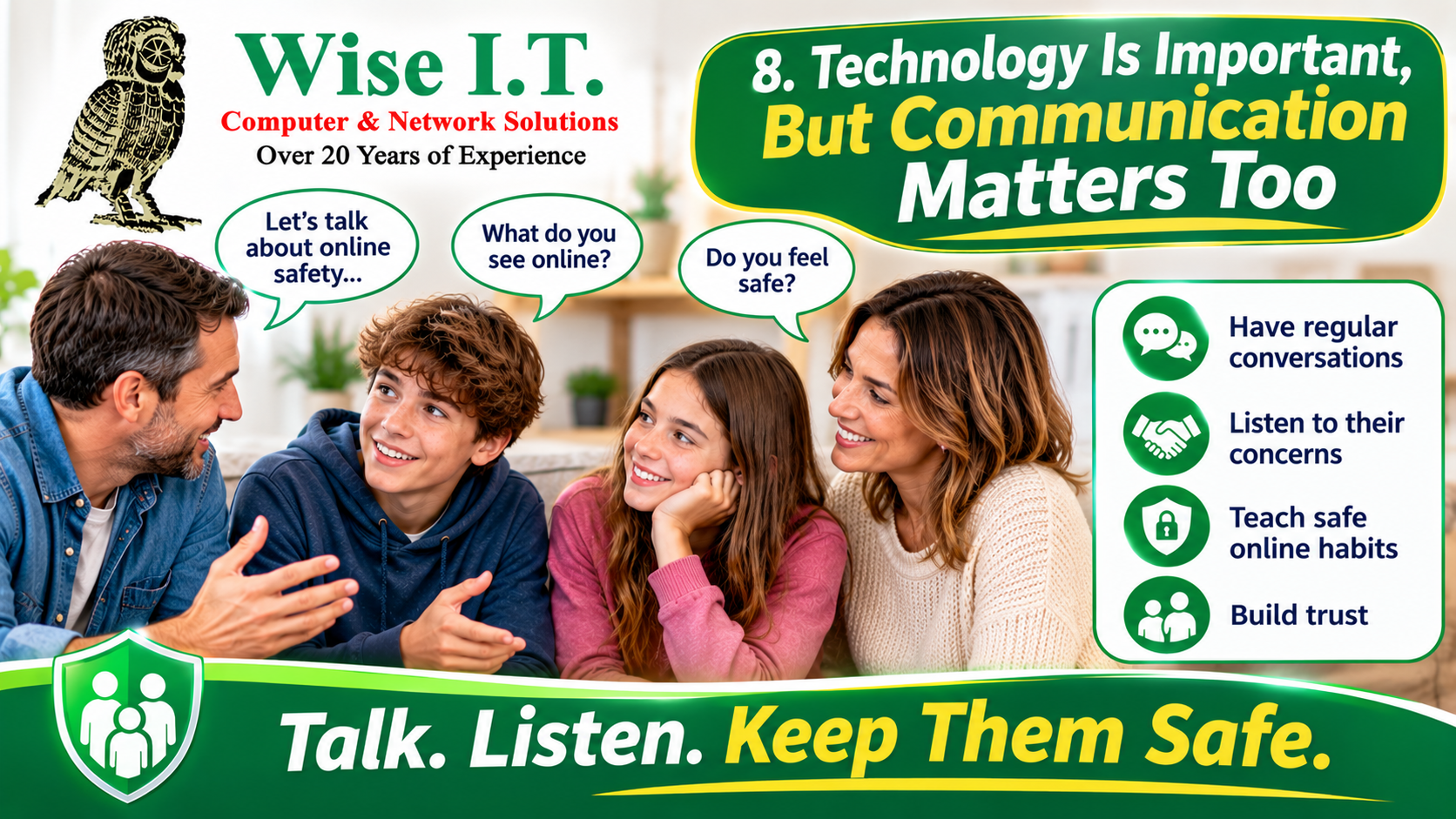
No parental control application or firewall is 100% effective.
Technology can help identify inappropriate content, limit exposure, and alert parents to potential problems. However, it cannot replace communication and parental involvement.
We recommend establishing clear household rules:
- Discuss what information should never be shared online.
- Explain the dangers of communicating with strangers.
- Talk about cyberbullying and inappropriate messages.
- Establish reasonable screen time limits.
- Require approval before installing new applications.
- Explain why VPNs and other bypass tools may be restricted.
- Encourage children to report uncomfortable online experiences.
- Periodically review privacy settings and online friends.
It’s also important to balance monitoring with age-appropriate privacy.
Children should understand that parental controls are intended to protect them, not simply to spy on them.
A combination of reasonable boundaries, education, and technology is usually the most effective approach.
9. Additional Resources for Parents
Parents don’t have to figure everything out on their own. There are several organizations that provide helpful information about online safety, privacy, and parental controls.
Here are some resources worth bookmarking:
- Common Sense Media: Parents’ Ultimate Guide to Parental Controls – A comprehensive overview of parental controls across devices and platforms.
- Entertainment Software Rating Board (ESRB) – Information about video game ratings and parental controls.
- National Center for Missing & Exploited Children – Resources for protecting children from online exploitation.
- FBI Safe Online Surfing – Online safety education for children.
- Apple Family Safety – Instructions for managing Screen Time and family settings.
- Google Family Link – Android and Google account supervision.
- 60 Minutes: Australia’s Under-16 Social Media Restrictions – Reporting on the challenges of regulating children’s access to social media.
Staying informed about new applications, online platforms, and emerging threats is just as important as installing parental control software.
Final Thoughts: Protect Your Family at Home and Away
Keeping children safe online is becoming more complicated as smartphones, social media, gaming platforms, and Internet-connected devices become part of everyday life.
A home firewall such as Firewalla can provide excellent network protection. Circle can help manage Internet access and extend certain controls to supported mobile devices. Apple Screen Time and Google Family Link offer built-in parental controls, while Bark and Qustodio provide additional monitoring capabilities.
Gaming consoles also need attention. Nintendo, PlayStation, and Xbox all offer parental controls that can help parents manage communication, screen time, spending, and age-appropriate content.
The most important thing to remember is that your home Wi-Fi protection does not automatically follow your child when they switch to cellular data.
Make sure your parental control strategy covers the devices themselves, not just the Internet connection in your home.
Need Help Setting Up Parental Controls?
Wise I.T. Computer & Network Solutions helps families
and businesses throughout Orange County with computer
support, home networking, Wi-Fi security, device
configuration, and technology solutions.
Whether you need help configuring a home firewall,
securing your Wi-Fi network, setting up parental controls,
or protecting your family’s computers and devices,
we can help you choose the right solution.
and surrounding communities since 2008.
The post Parental Controls: How to Keep Kids Safe Online first appeared on Wise I.T. Computer & Network Solutions.